Teams
The Teams page (/admin/teams) lets administrators group agents into teams
that users then chat with together in a chat room. A team has a lead and one
or more members. Only admin users can access this page. How a team behaves in
conversation is covered by the Team chat
concept.
The team list
The overview shows all existing teams in a table with the columns:
| Column | Description |
|---|---|
| Name | The team's name |
| Lead | The agent set as the lead |
| Members | The number of team members |
Click a row to edit the team. When there are no teams yet, the page shows No teams yet.
Creating a team
- Click New team.
- Enter a team Name (required).
- Choose a First member agent.
- Click Create team.
After saving, the team editor opens, where you add more members and set the lead.
Managing a team
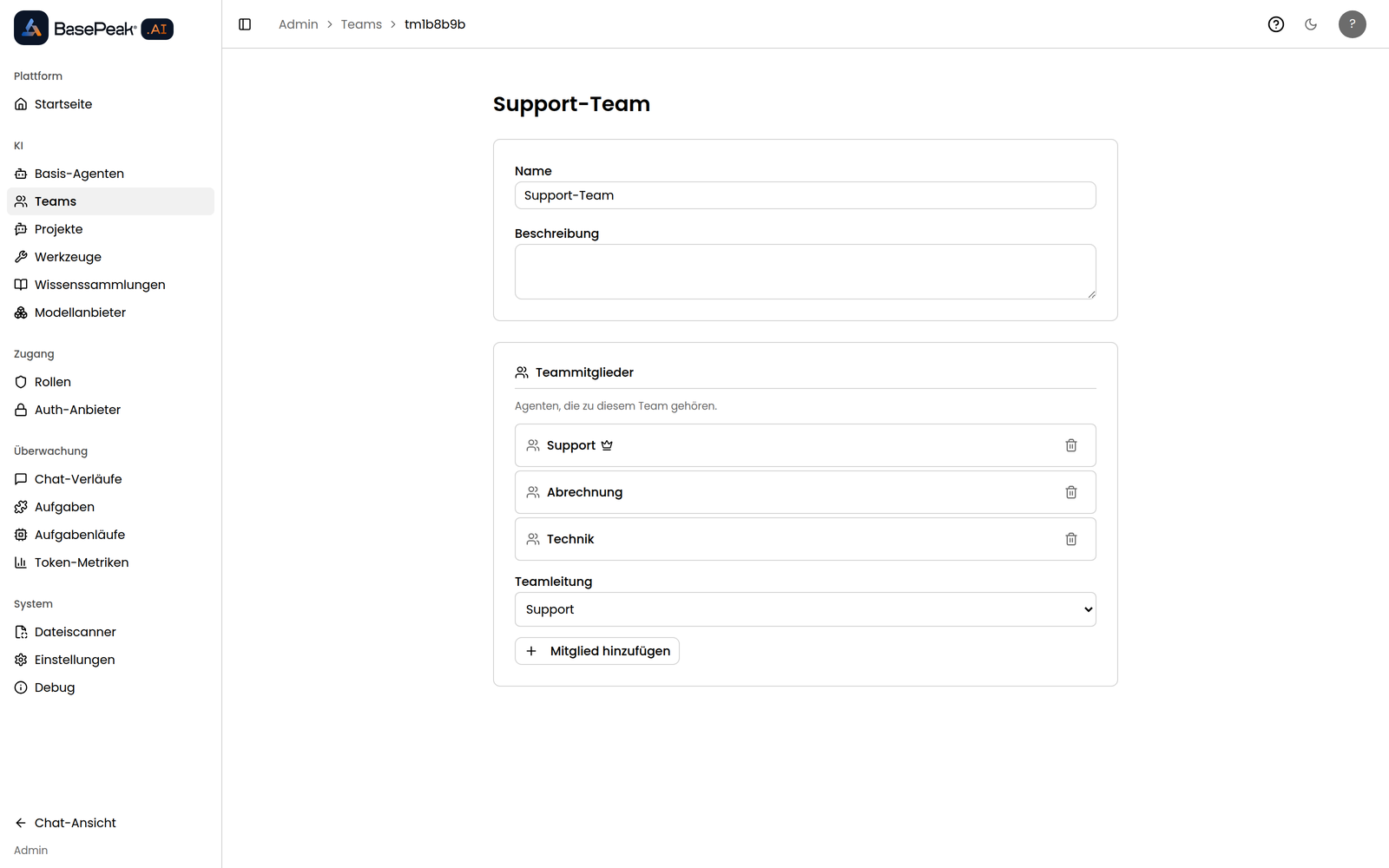
In the team editor (/admin/teams/<id>) you define who is on the team and who
leads it:
- Name and Description name the team.
- Under Team members you see the agents on the team. Use Add member to pick another agent (Search agents… helps you find it). A member can be removed again.
- Under Team lead, use Select lead… to make one of the members the lead.
The lead is the room's default point of contact: messages without an
@-mention go to it.
To save, a team must have at least one member and a lead set — otherwise the editor prompts "Add at least one member and choose a lead to save."
Hop cap and cost ceiling
The team editor also lets you set two per-turn ceilings:
- Hop cap — the maximum number of member activations per turn.
- Cost ceiling (tokens) — the maximum total token spend per turn.
For both, 0 means unlimited. If a limit is reached while a conversation is running, BasePeak.AI stops the turn automatically and leaves a system notice in the room (e.g. "Stopped: hop cap reached (5 / 5).") instead of letting it run unbounded.
Chatting with the team
In the team editor, click "Open team chat" (top right) to open the team's
chat room. You can also reach the room directly at /team/<team-id> — the
<team-id> is the last segment of the editor URL (if the team editor is at
/admin/teams/tm1b8b9b, the room is /team/tm1b8b9b). From there, see
Team chat.
Who may chat in team chat
Team management (create, edit, delete) is admin-only. Chatting with a team, however, is open to any signed-in user — while the room and the members' sub-conversations stay strictly scoped to the chatting user (see Team chat).
A member always runs with the underlying agent's own knowledge and own tools. So you assemble a team from existing agents; their configuration is unchanged and reused for team chat.