Auth Providers
The Auth Providers page (/admin/auth-providers) lets workspace administrators define how users sign in to BasePeak.AI. Only admin users can access this page.
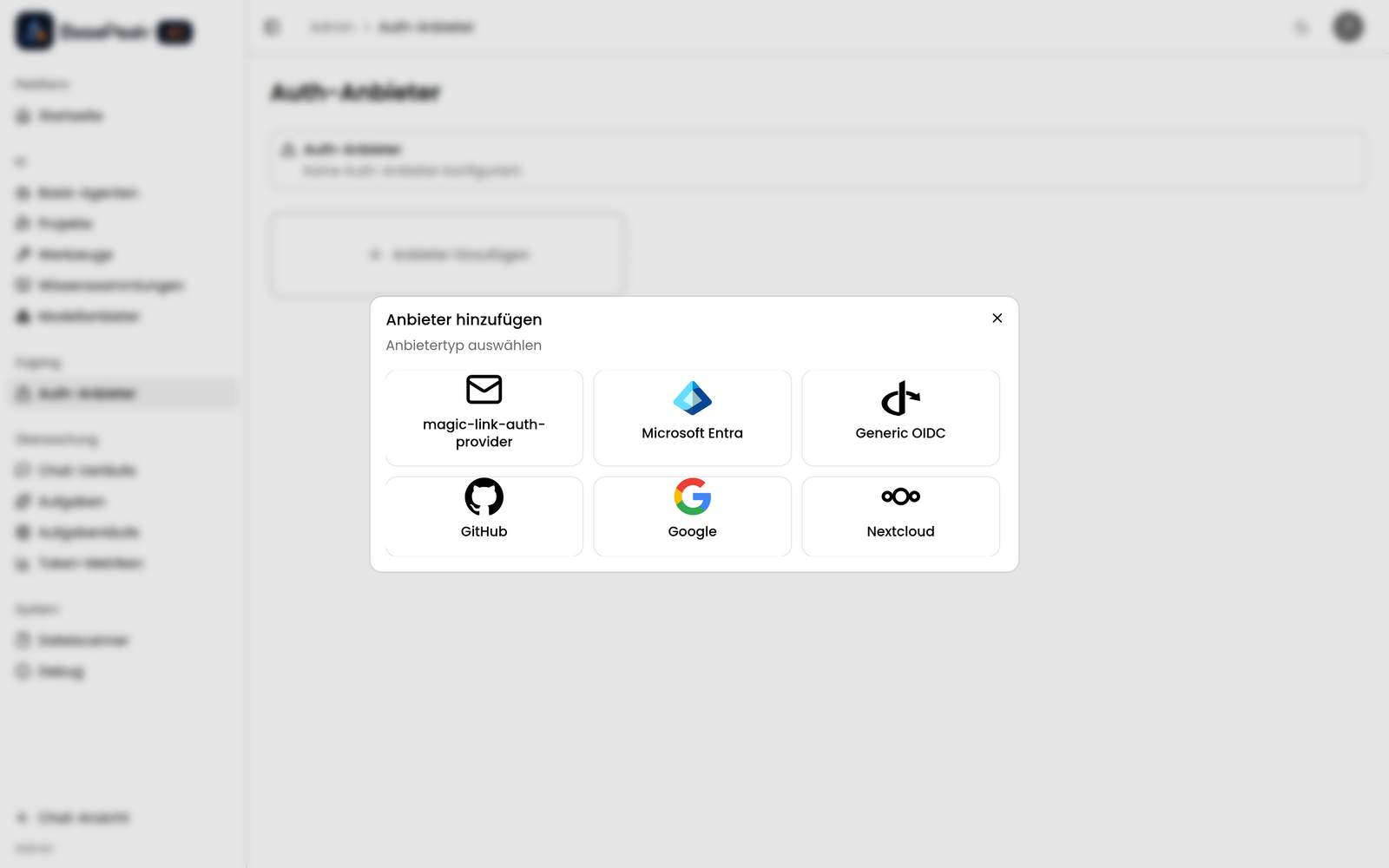
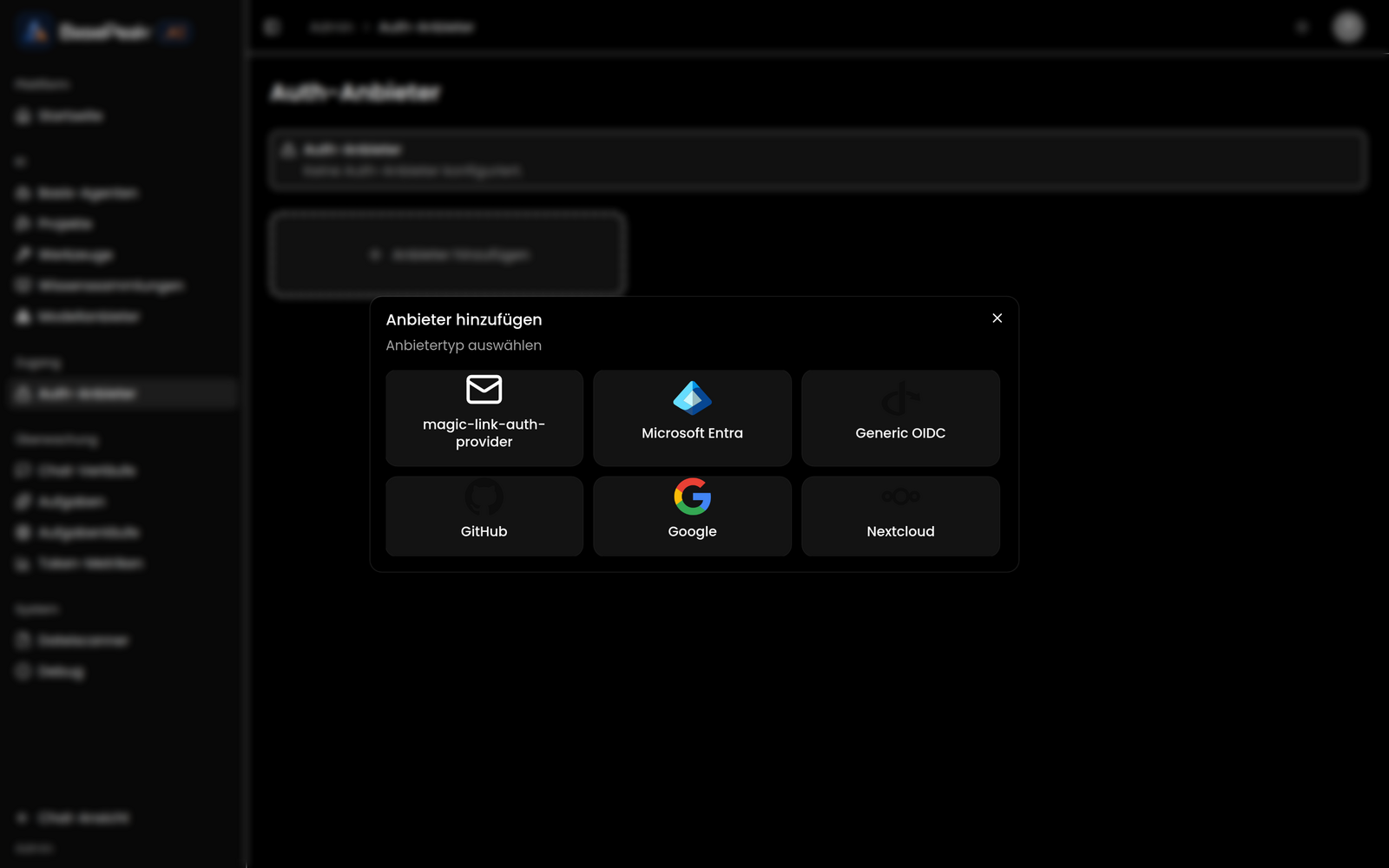
Auth providers control user login — that is, which service users authenticate through, such as Google, GitHub, Okta, or Magic Link.
Auth providers apply solely to user sign-in. They are not to be confused with the OAuth credentials for tools, which define how tools access third-party services. The latter are described separately under OAuth for Tools.
The Provider Overview
The page shows all available providers as tiles in a grid. Each tile carries a status badge:
- Configured — the provider is ready to use
- Not Configured — the provider has been created, but credentials are still missing
- Error — there is a problem with the configuration; the error message is shown on the tile
- Read-only — a provider supplied by the BasePeak platform that cannot be modified or deleted through the user interface
As long as no provider is configured, a warning appears at the top of the page (No auth providers are configured.).
Adding a Provider
- Click the Add Provider tile (with the plus icon) at the end of the grid
- Under Select Provider Type, choose the desired provider type
- Under Display Name, give the instance a name and click Create
- The configuration dialog for the new instance then opens automatically
Configuring Credentials
- Click a provider tile or choose Configure from the menu
- The dialog shows the Callback URL at the top — use this URL in your provider's OAuth configuration. The copy icon lets you copy it to the clipboard
- Fill in the fields under Required Configuration and, where applicable, Optional Configuration
- Sensitive fields are displayed masked; the eye icon lets you show and hide the value again
- Click Save. BasePeak.AI validates the credentials before saving; if validation fails, Validation failed appears with an error message
Deleting a Provider
- Open the menu on the provider tile and choose Delete
- The confirmation dialog shows how many users are affected by the deletion
- Confirm with Delete or abort with Cancel
Read-only providers cannot be deleted.
Notes
- Entered credentials are stored encrypted and displayed masked in the configuration forms.
- Deleting a provider affects the login of the associated users. The confirmation dialog therefore names the number of affected users.
- The admin sections Users and Groups only become available once at least one auth provider is configured.