Knowledge Sets
The Knowledge Sets page (/admin/knowledge-sets) lets workspace administrators manage knowledge sets. Only admin users can access this page.
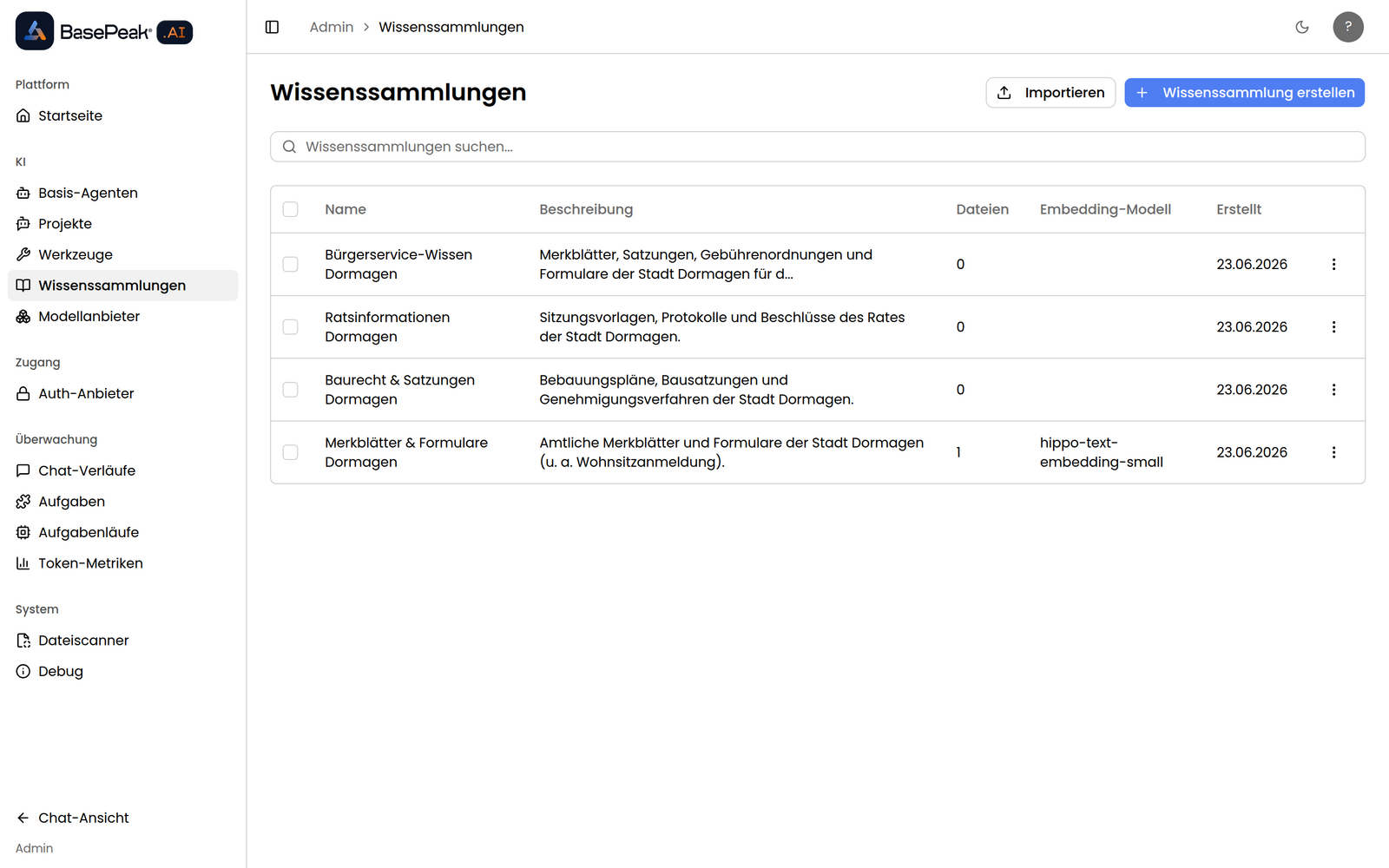
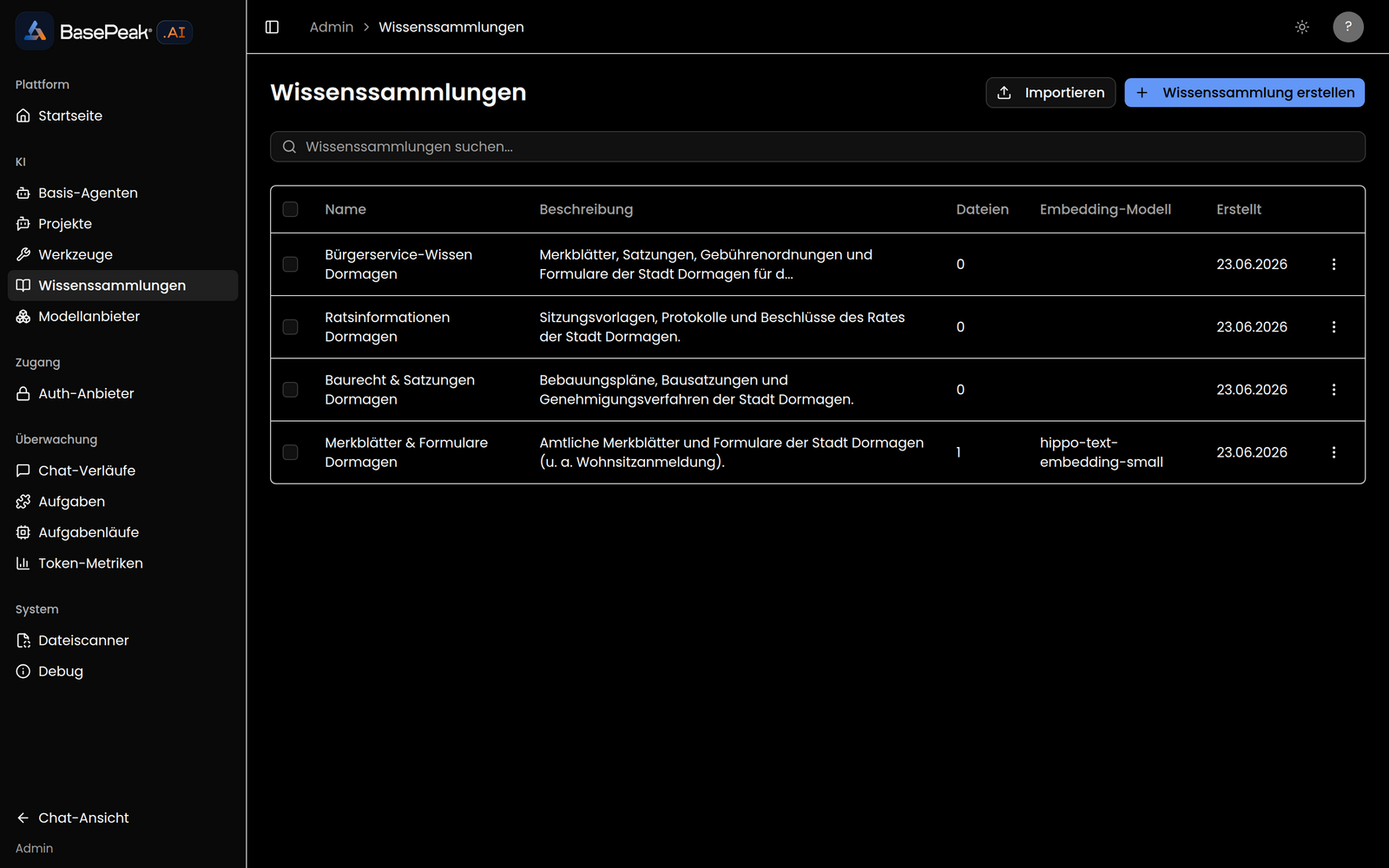
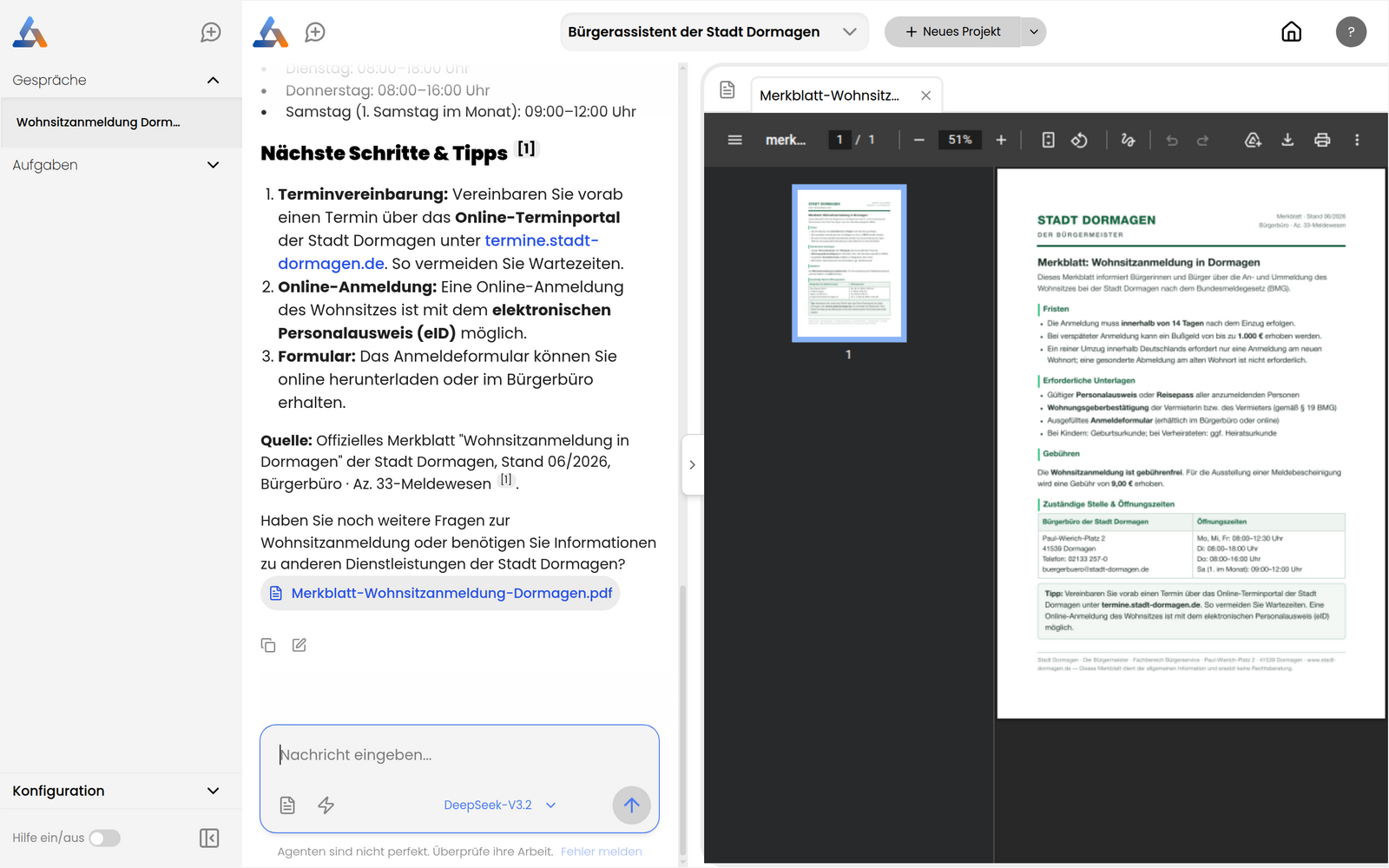
A knowledge set is a knowledge base (RAG corpus): a collection of documents and external sources that is prepared ("embedded") for semantic search. Agents can access one or more knowledge sets to ground their answers in your own content.
Overview
The list view shows all knowledge sets in a table with the following columns:
| Column | Content |
|---|---|
| Name | Name of the knowledge set |
| Description | Data description (truncated) |
| Files | Number of contained files |
| Embedding Model | Model used for embedding |
| Created | Creation date |
Use the search field (Search knowledge sets...) to filter the list by name or description. Use the checkboxes at the start of each row to select multiple knowledge sets and remove them together with the Delete button (which shows the number of selected entries).
Creating a Knowledge Set
- Click Create Knowledge Set
- BasePeak.AI creates the knowledge set and opens its detail page directly
- Give it a name there and populate the knowledge set with sources or files
The Embedding Model comes from your configured model providers (see Model Providers). Make sure at least one suitable model is available.
Editing Details
On a knowledge set's detail page, you edit the Name and Data Description. Both fields are saved automatically (Saving... appears while saving). A meaningful description helps agents recognize when this knowledge base is relevant.
A metadata bar at the top of the page shows the most important figures: Created, Files (count), Total Size, Embedding Model, as well as usage by Agents and Threads.
Knowledge flow
In the Advanced section at the bottom of the detail page, you set how a knowledge set reads in, splits, and searches documents — its knowledge flow. The default suits most sets; you don't need to change anything here.
Pick a ready-made processing profile:
| Profile | Best for |
|---|---|
| Standard (balanced) | Most content — the default. |
| High quality (hybrid) | Combines meaning-based and keyword search; better recall on names, IDs, and exact terms. |
| Large context | Keeps larger, coherent passages together — for questions that need the whole section. |
| Legal documents | Splits by legal structure (sections, articles, clauses) — for statutes, contracts, and ordinances. |
Alternatively, upload a custom configuration file (YAML) that applies to just this knowledge set. A downloadable template gets you started.
Changing the flow on a set that already contains files affects only newly added files at first. BasePeak.AI therefore offers to re-ingest all existing files so the new setting applies everywhere. Sets you don't change keep working unchanged.
Knowledge Sources
In the Knowledge Sources section, you connect external data sources that are synchronized automatically. Click Add Source to create a source and select the source type:
| Type | Description |
|---|---|
| Website | Crawl one or more URLs |
| OneDrive | Shared OneDrive links |
| Notion | Notion workspace |
| Nextcloud | Nextcloud instance |
| SMB / Network Share | Network share (SMB) |
| WebDAV | WebDAV server |
| S3 / Object Storage | S3-compatible object storage |
| SFTP | SFTP server |
| Council Information System (RIS) | Municipal council information system |
| State Law (NRW) | State law for a Bundesland (currently North Rhine-Westphalia) from recht.nrw.de |
Depending on the type, you enter the necessary connection details and, where applicable, credentials. Optionally, you set a Sync Schedule (e.g. Hourly, Daily, or a custom cron expression) and enable Auto-approve files.
For State Law (NRW), you first choose the Bundesland (currently North Rhine-Westphalia) and then search a browsable catalogue for the laws, ordinances, and administrative regulations you want to bring into the knowledge set.
Content comes from recht.nrw.de (SGV.NRW) and is a non-official consolidated version.
Each source shows a status badge:
| Status | Meaning |
|---|---|
| Pending | Sync is still pending |
| Syncing | Sync is currently running |
| Synced | Source was imported successfully |
| Error | Sync failed (details via View error) |
While sources are syncing, the page updates the status automatically. From a source's actions you can Sync Now, View Files, edit it, or Remove Source.
File types
For sources that read files (Website, OneDrive, Nextcloud, SMB, WebDAV, S3, SFTP), File types decides which files are downloaded at all. By default only Documents is on: PDF, Word, OpenDocument, PowerPoint, text, HTML, Markdown, CSV, JSON, notebooks and e-mails (.msg, .eml). Switch on Spreadsheets, Images, Archives, Audio & video or All files per source.
Under Advanced patterns you add individual files or folders, one pattern per line:
- Also include – e.g.
*.dwgalso downloads drawings. - Always skip – e.g.
Archiv/leaves out that folder and everything in it. Wins over "Also include".
Matching ignores case. * matches any characters within a name, ** any number of folders. A pattern without / applies to file and folder names in every folder, a leading / anchors it at the source's configured folder, a trailing / means a folder and everything below it. Hidden files and folders and temporary files (e.g. ~$…, *.tmp, Thumbs.db) are always skipped. Files without an extension are skipped unless All files is on or an Also include pattern matches (e.g. LICENSE).
Maximum file size caps single files (1–1024 MB); left empty, your instance's default applies. Files over the limit keep their previous copy.
View Files shows what a sync skipped and why. From there you switch on a suggested file type in one click; the Too large list names files over the size limit.
Knowledge Files
In the Knowledge Files section, you upload documents directly. Click Upload Files and select one or more files. Supported formats include the following:
PDF, TXT, DOC, DOCX, MD, HTML, ODT, RTF, CSV, IPYNB, JSON, PPTX, PPT, and PAGES.
After uploading, each file goes through processing (ingestion and embedding). The processing state is displayed:
| State | Meaning |
|---|---|
| Pending Approval | File was detected but not yet processed |
| In Progress | File is currently being processed |
| Ingested | File is processed and searchable |
| Unsupported | File type is not supported |
| Error | Processing failed |
The page automatically refreshes pending files until processing is complete. Individual files can be permanently removed from the knowledge base via their respective Delete action.
Exporting and Importing
With Export, you create a package (.zip) from a knowledge set that optionally contains the Include knowledge set manifest (name + description) and the Include source files. Created packages appear under Recent exports with phase, size, and expiration time, and are available there for Download.
Using the Import button in the list view, you can re-import a previously exported package. You can Name override (optional) and Description override (optional) or Use manifest from package.
Deleting a Knowledge Set
You delete a knowledge set via Delete Knowledge Set (on the detail page or via the actions menu in the list). Before deleting, BasePeak.AI checks whether the knowledge set is still in use.
A knowledge set that is still in use by agents or threads cannot be deleted. The message This knowledge set is currently in use and cannot be deleted. appears. During bulk deletion, knowledge sets that are in use are automatically skipped.
Remote Knowledge Sets
In addition to your own knowledge sets, BasePeak.AI can attach knowledge sets that live on someone else's Knowledge Server — for example a partner who sells you access to a curated set, or your own on-premises server feeding a hosted instance. The documents stay entirely on that other server; BasePeak.AI retrieves from it live on every query and stores nothing locally.
Connecting a server
- In the Knowledge Sets list (or from an agent's edit page), click Add remote knowledge set.
- On the first connection, register a new server: its Server URL and the API key you were given. The address must start with
https://— an unencrypted connection is refused, so the key is never sent in the clear. If at least one server is already registered, you first choose between an existing server and Register a new server. - BasePeak.AI checks the connection and then shows the datasets that key unlocks, each with its name, description, and file count.
- Select one or more datasets and confirm via the button at the bottom of the dialog, which also shows the count of selected datasets. Each selected dataset becomes its own knowledge set.
The resulting sets appear in the ordinary Knowledge Sets list, marked with a column showing the server's display name. Name and data description are initially taken from the remote server but can be edited here as usual. Attaching one to an agent works through the same mechanism as a local set.
What a remote set cannot do
A remote knowledge set is deliberately read-only: there is no file upload, no knowledge sources, no export/import, and no processing profile of its own — the remote server decides, through its own pipeline, how documents are read and indexed. An agent's answers name the filename and location for a hit from a remote set just as they do for a local one; a clickable link to the original document is not available in this release.
When a server is unreachable
If a connected server is temporarily unreachable, its key has expired or been revoked, or a request is rate-limited, the agent still answers the question — using whatever the remaining knowledge sets provide — and the Knowledge Sets list flags the affected set with an error message. A single unreachable server never fails a conversation outright. BasePeak.AI re-checks reachability automatically in the background; Retry triggers the same check by hand.
Managing servers
Manage remote servers opens an overview of every registered server, showing reachability, key ID, time of the last check, and dataset count. From there you can:
- re-check the connection via Retry,
- exchange the key via Rotate key, if the remote operator has issued a new one,
- delete the server.
A server cannot be deleted while any knowledge set still points at it — BasePeak.AI refuses the deletion and names the sets involved. Remove or re-point those first.
The overview also shows whether the stored key permits downloading the original source documents — a decision the remote operator makes when issuing the key. Right now, that permission only controls data access on the server itself; a clickable link to the original document from a chat citation is not yet available in this version.
Notes
- The Embedding Model is set at creation time and comes from the configured Model Providers.
- Sources with credentials (SMB, WebDAV, SFTP, S3) remain in the Pending status until a valid password is stored.
- When deleting a knowledge set, all contained files and sources are lost irretrievably.