Marketplace
The Marketplace offers ready-made bundles from BasePeak: agents with their tools and knowledge sources, apps, connectors, knowledge and projects. Every bundle is reviewed and signed by BasePeak. Before you install one, you see what it will create, where data goes and whether it fits your instance. Nothing is created until you confirm it, and nothing updates by itself.
This page is for administrators. How other people ask you for a bundle is described in Requesting bundles.
The Marketplace is part of the new interface and has to be switched on for your instance. If there is no Marketplace entry in the left rail, contact BasePeak.
The video: from finding to handing over
The video (silent, about 1:40 minutes) shows the whole flow in the German interface: finding a bundle, reviewing it, installing it, handing it over to a team, marking it as helpful and opening the catalog settings. Switch the subtitles between English and German in the player.
Browsing the catalog
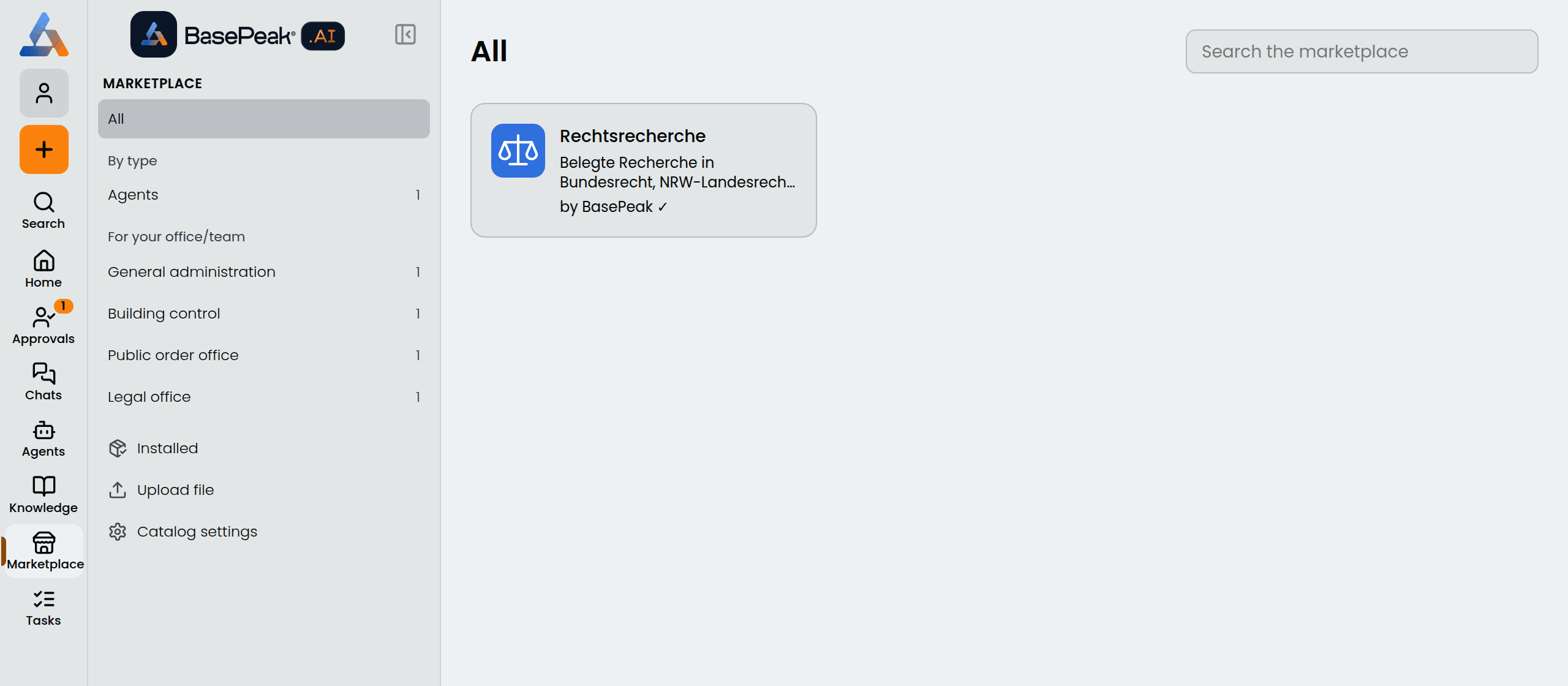
Click Marketplace in the left rail. Everyone on the instance can open the Marketplace; only administrators can install.
- All shows the whole catalog.
- By type filters by agents, apps, knowledge, connectors and projects.
- For your office/team filters by audience, such as building control or the legal office. The list comes from the catalog, not from your profile.
- Search the marketplace (top right) searches names, descriptions, tags and categories.
Below that, for administrators only, are Installed, Upload file and Catalog settings.
The bundle page
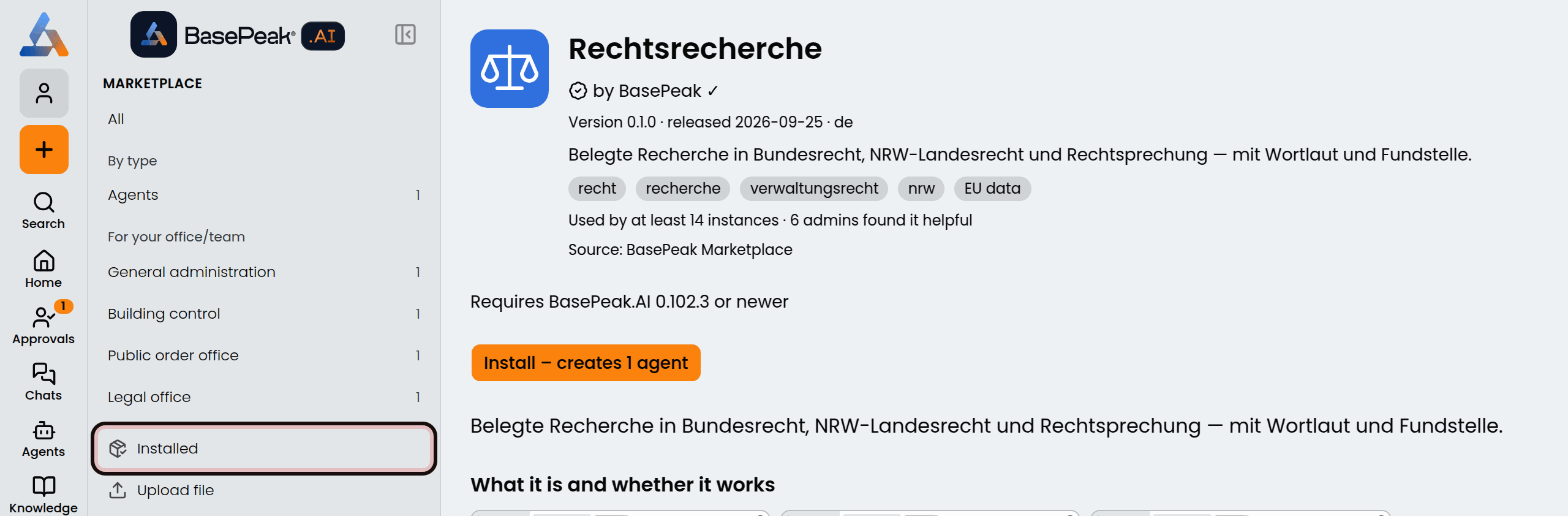
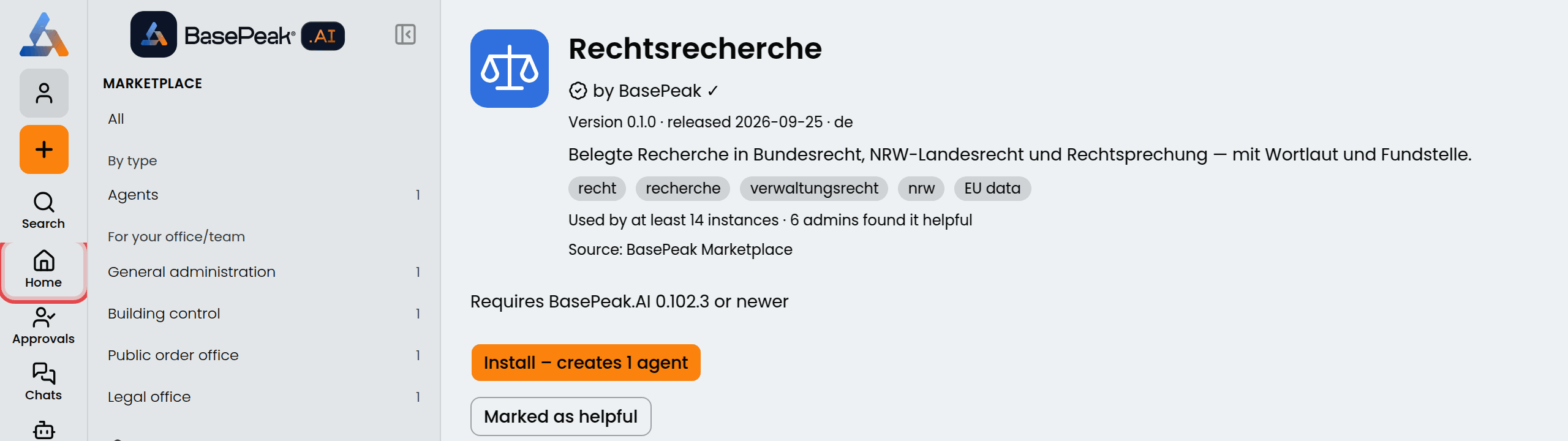
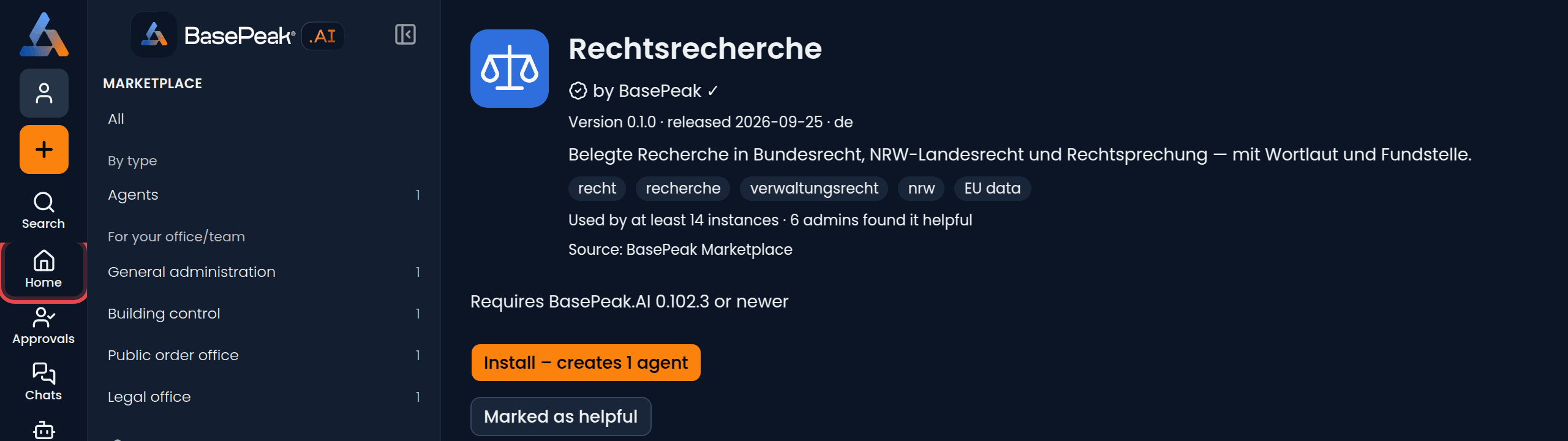
Clicking a tile opens the bundle page. At the top are the name, by BasePeak ✓, version, release date, language and tags. EU data appears when every external service the bundle uses is in the EU. Once at least three instances use the bundle, the header also says "Used by at least 14 instances · 6 admins found it helpful" (see Usage numbers and "helpful").
Further down is what the catalog says about the bundle:
- What it is and whether it works: screenshots, example questions with answers from real runs (View the full run) and the evaluation result with model and date.
- What gets installed: the resources it creates and what it needs on your instance.
- Where data goes: each external service, marked EU or Outside the EU, and what goes there. Your own language model shows as "Your language model, as configured in your instance".
- References and Changes (the changelog per version).
If a bundle needs a newer version, the page says "Requires BasePeak.AI … or newer" above the button.
Installing
1. Open the review
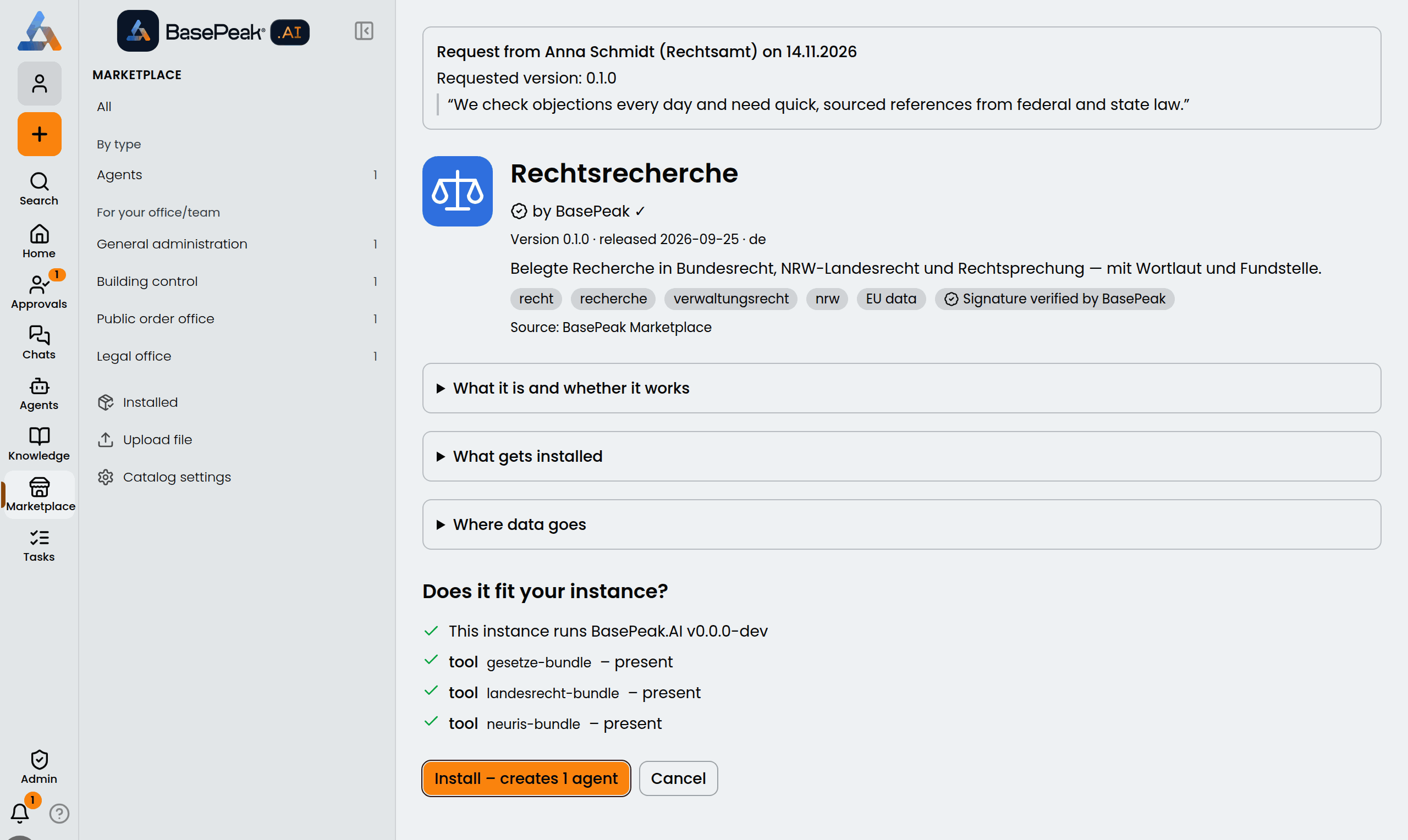
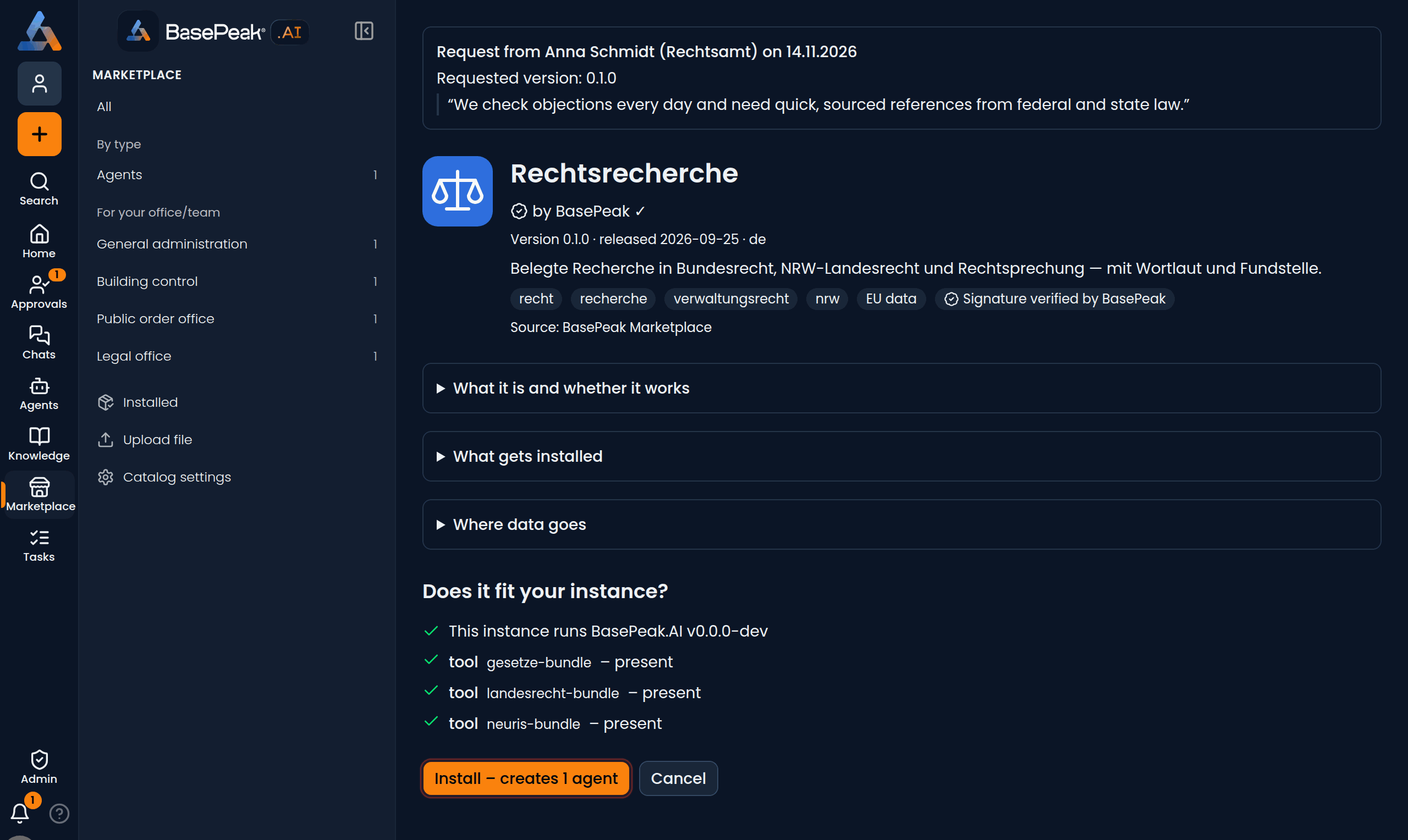
Click Install. The button already says what will be created, for example Install – creates 1 agent. It opens the review; nothing is created yet.
2. Check that it fits
The review shows the bundle header with its signature:
- Signature verified by BasePeak: the bundle comes from BasePeak, unchanged.
- Not signed by BasePeak or Signature invalid: this only happens with uploaded files (see Installing from a file). Only install such bundles if you trust where they came from.
The three sections from the bundle page can be expanded. Below them, Does it fit your instance? checks, without creating anything:
- whether your instance runs the BasePeak.AI version it needs and has the features it needs switched on;
- whether the tools it needs are present or missing on this instance;
- which of your resources the bundle should use, such as a model or a knowledge source. Pick an existing one (Please choose …) or create a new one (Create new …);
- whether a name is already taken. Then enter a new name; a suggestion is filled in.
While anything still needs a decision, the page shows "1 decision open" and the button stays disabled. If the bundle cannot be installed like this, the reason is listed under "The bundle cannot be installed like this:". Show notes lists what the install does not carry over, or only adjusted.
3. Install
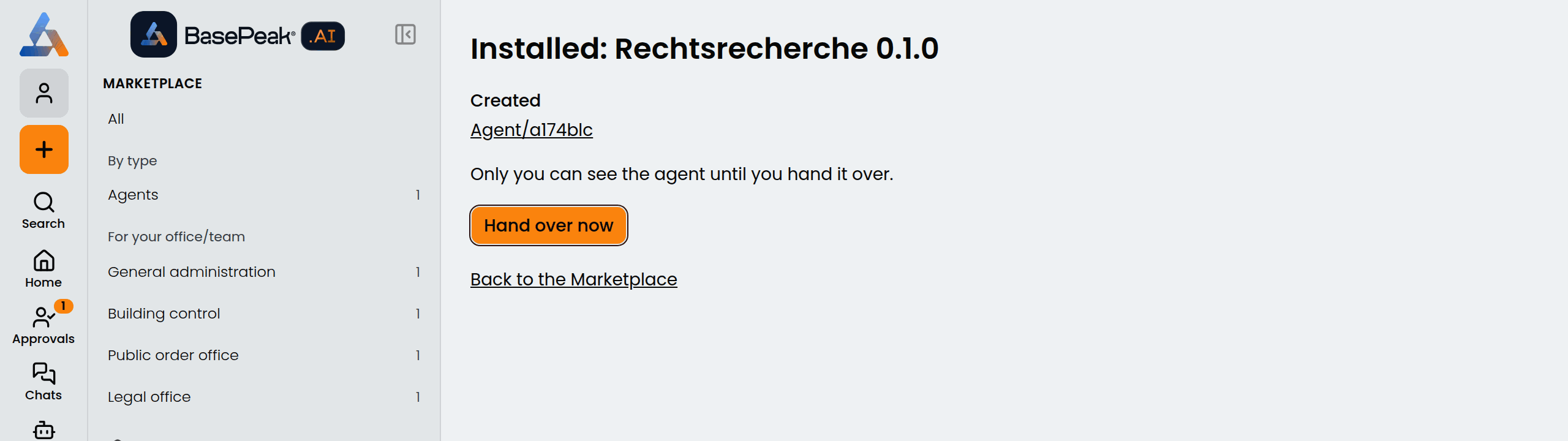
Click Install – creates …. You then see Installed: <name> <version> and the new resources under Created.
An agent is at first visible to you only: "Only you can see the agent until you hand it over." That gives you time to test it and adapt it to your instance. Other bundle types (apps, connectors, knowledge) are available as usual.

Handling requests and handing over
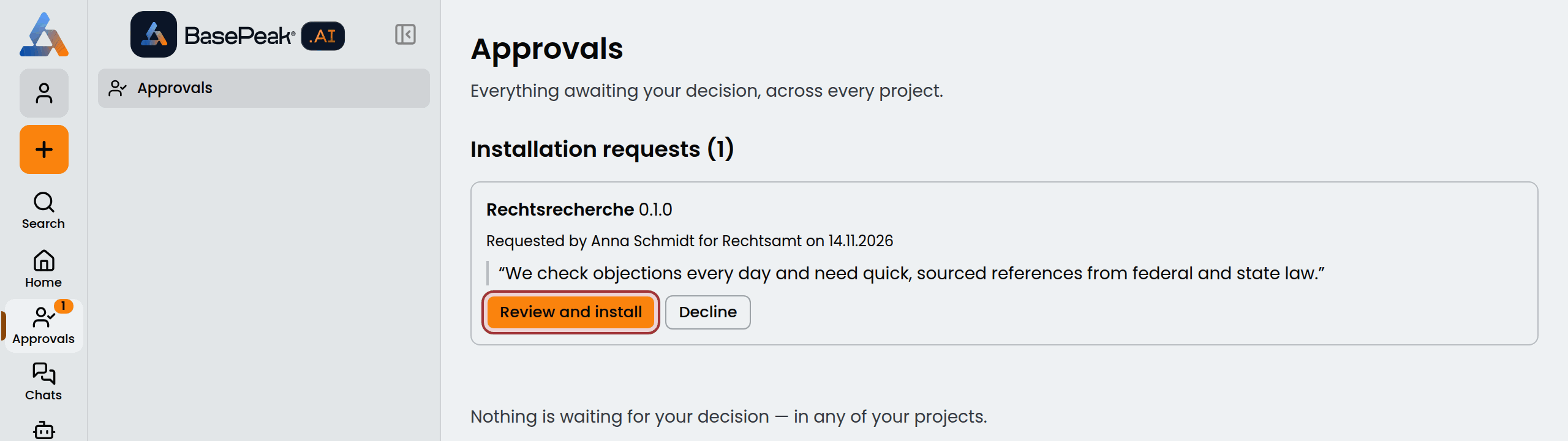
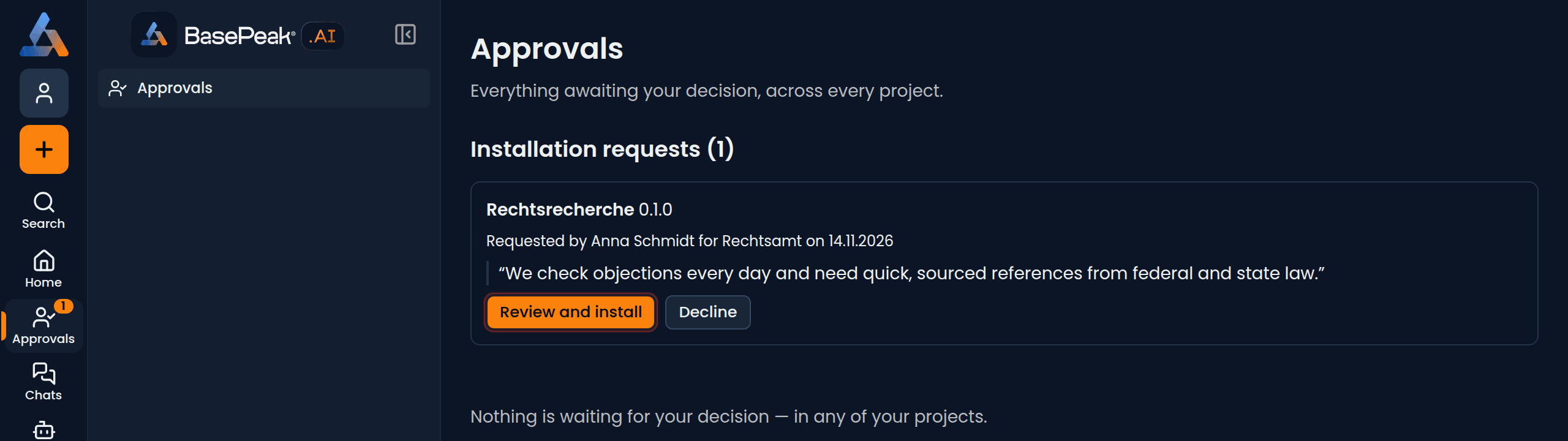
People who cannot install can request a bundle. Requests show up under Approvals in the left rail, with a count on the icon, in the section Installation requests. Each card shows who asked, for which team, via which agent if any, when and what for.
- Review and install opens the review with the request at the top (see Installing).
- Already installed – hand over appears when the bundle is already on the instance. Nothing is installed twice.
- Hand over appears when the agent is installed and still has to be handed over.
- Decline asks for a Comment for the requester and closes the request with Decline request.
Handing over an agent
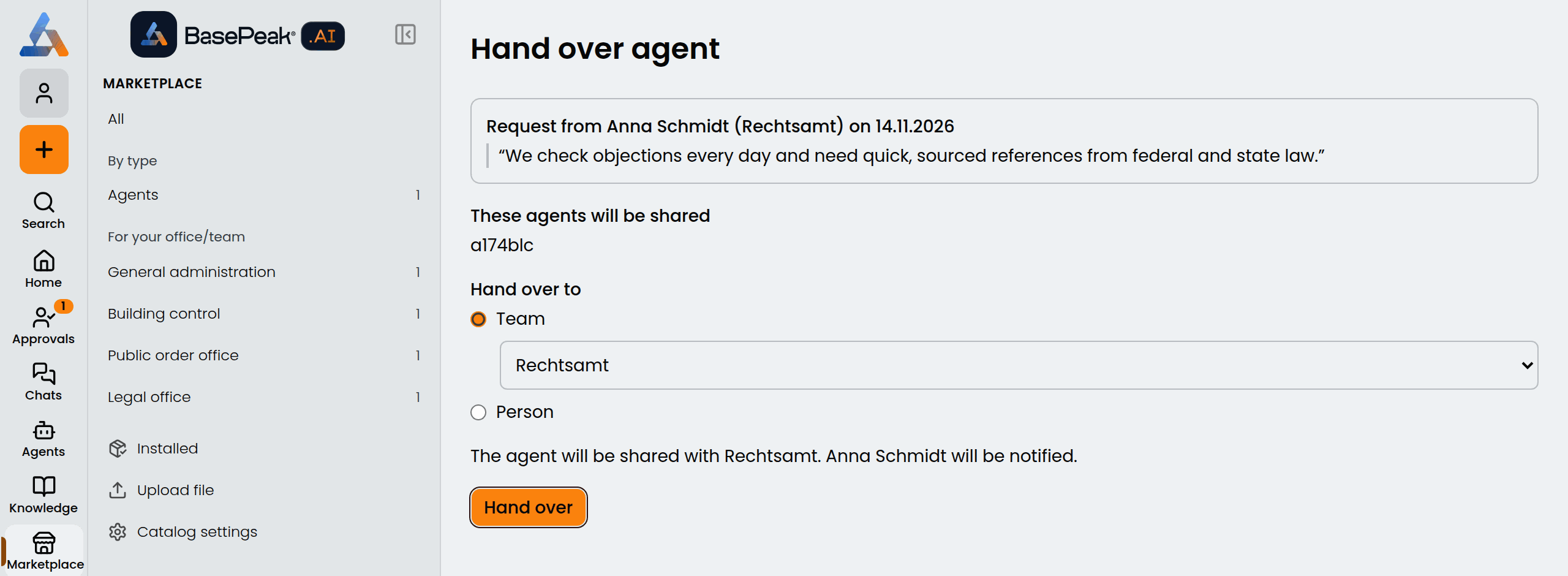
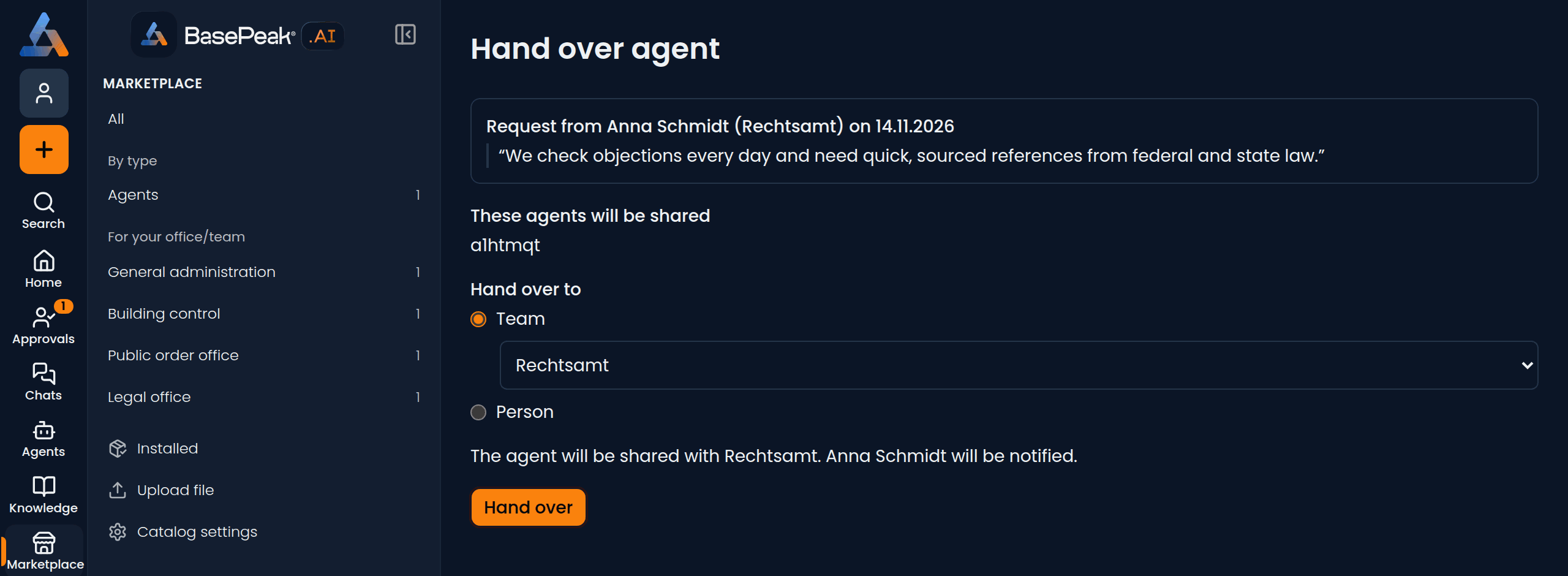
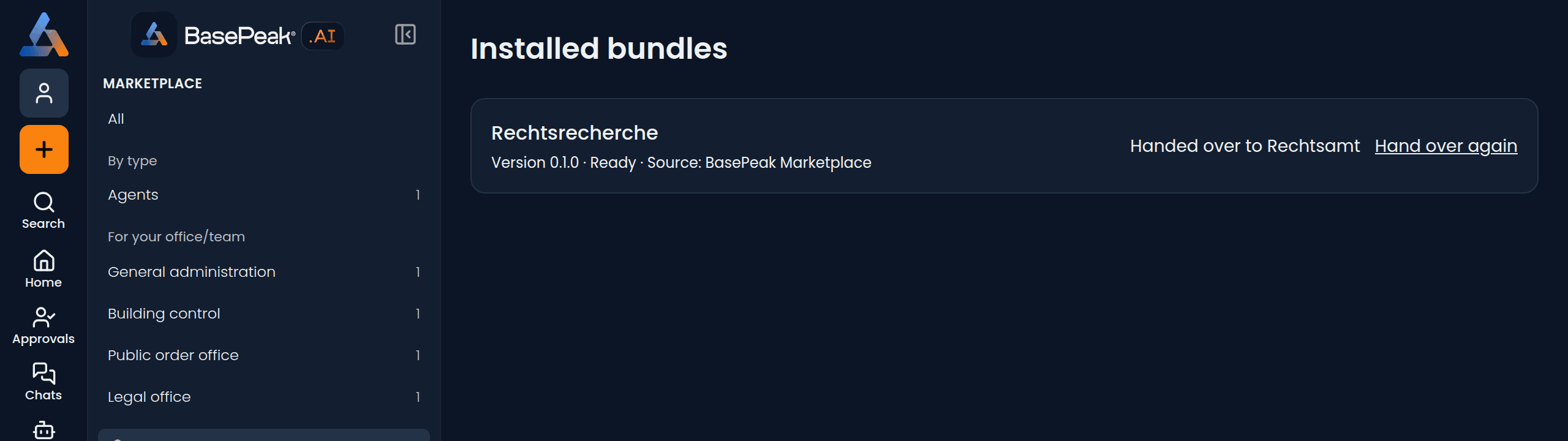
When the agent is ready, click Hand over now after the install, or Hand over under Marketplace → Installed. On the Hand over agent page, choose under Hand over to:
- Team: every member of the team gets the agent. If the request was made for a team, that team is preselected.
- Person: search by name or email address.
The sentence below sums up what will happen, for example "The agent will be shared with Rechtsamt. Anna Schmidt will be notified." Click Hand over. The requester gets a notification in the bell and the request is closed.
You can also hand over an agent without a request, and later to more teams or people (Hand over again). When you decline a request, the requester's bell shows it together with your comment.
Installed bundles and updates
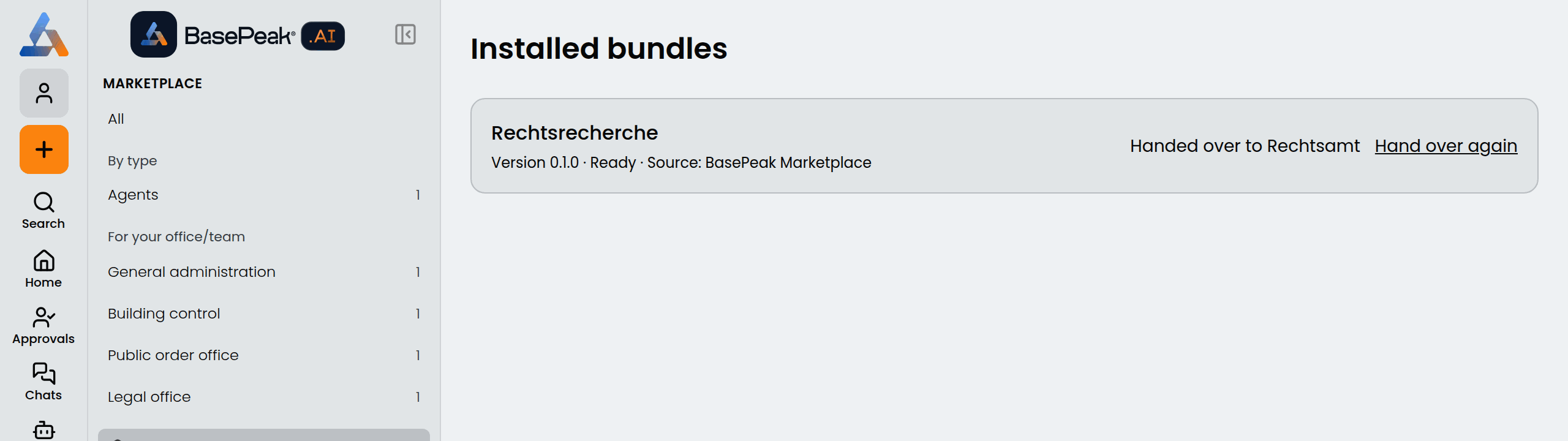
Marketplace → Installed lists every bundle with its version, its source and, for agents, who it was handed over to. The number next to Installed counts bundles with an update or on a withdrawn version.
Your instance re-reads the catalog about every six hours. When there is a newer version, the row says "Update to … available" with an Update button. It opens Update bundle:
- the changelog of the new version;
- under Take a closer look, what to check first: new external services, data that now leaves the EU, newly required features and dependencies;
- under Conflicts, the fields you changed yourself that also change in the new version. Decide for each field: Keep mine or Take the new one. Fields only you changed stay as they are.
Update applies the new version; Skip this version hides the update until the next one. When BasePeak withdraws a version, the row shows a warning with the reason.
Uninstalling
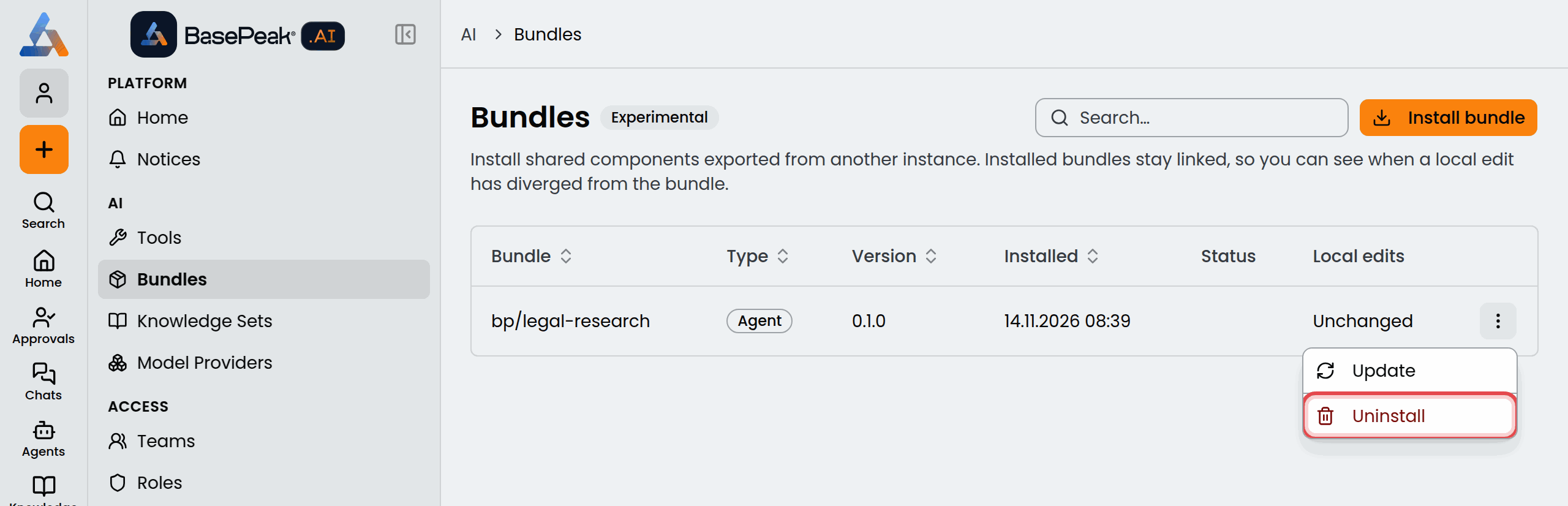
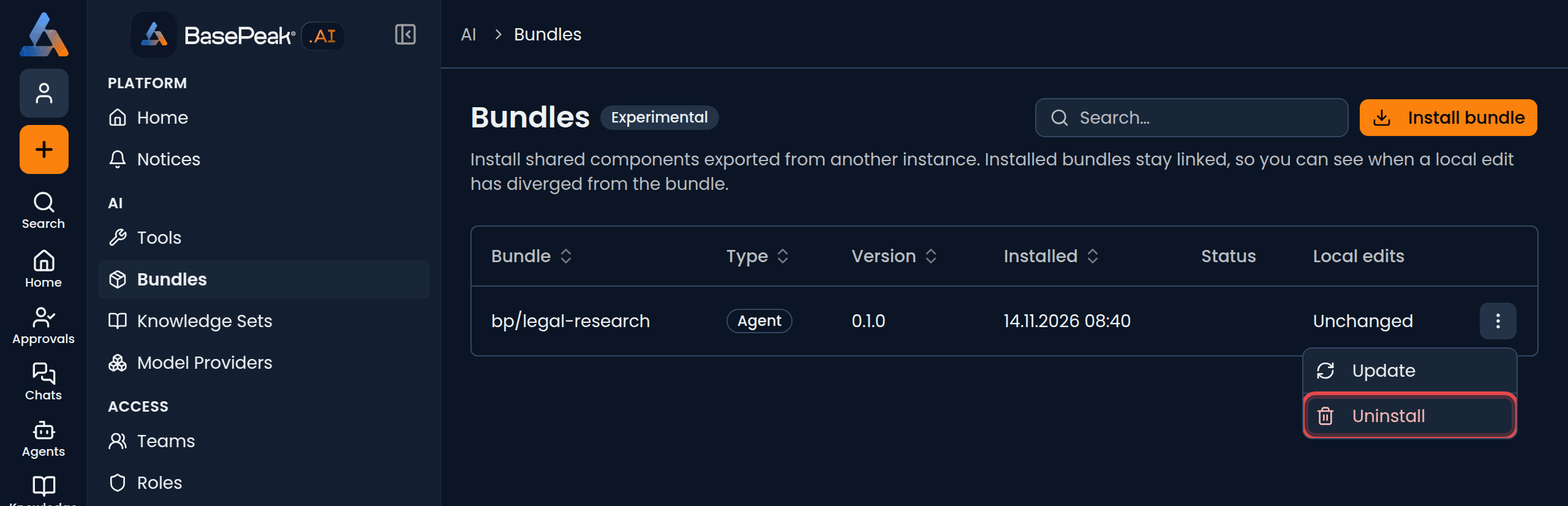
You uninstall bundles under Admin → Bundles: click ⋮ in the bundle's row, then Uninstall. This deletes the resources the bundle created. Anything you changed since installing is kept and listed afterwards. An installed agent goes to the Bin if your instance has one; otherwise it is deleted for good, together with its chats. The dialog tells you which applies before you confirm.
Usage numbers and "helpful"
The bundle page shows two numbers:
- "Used by at least … instances": how many instances have the bundle installed.
- "… admins found it helpful": how many administrators marked it as helpful.
Both appear only from three upwards and are lower bounds: instances that do not send usage reports are not counted.
Once you have installed a bundle from the Marketplace, its page shows Mark as helpful. One click counts your vote and the button then reads Marked as helpful; a second click takes it back. Each person counts once, even when several admins of one instance vote. Your vote counts only while the bundle is installed and your instance sends usage reports.
Catalog settings
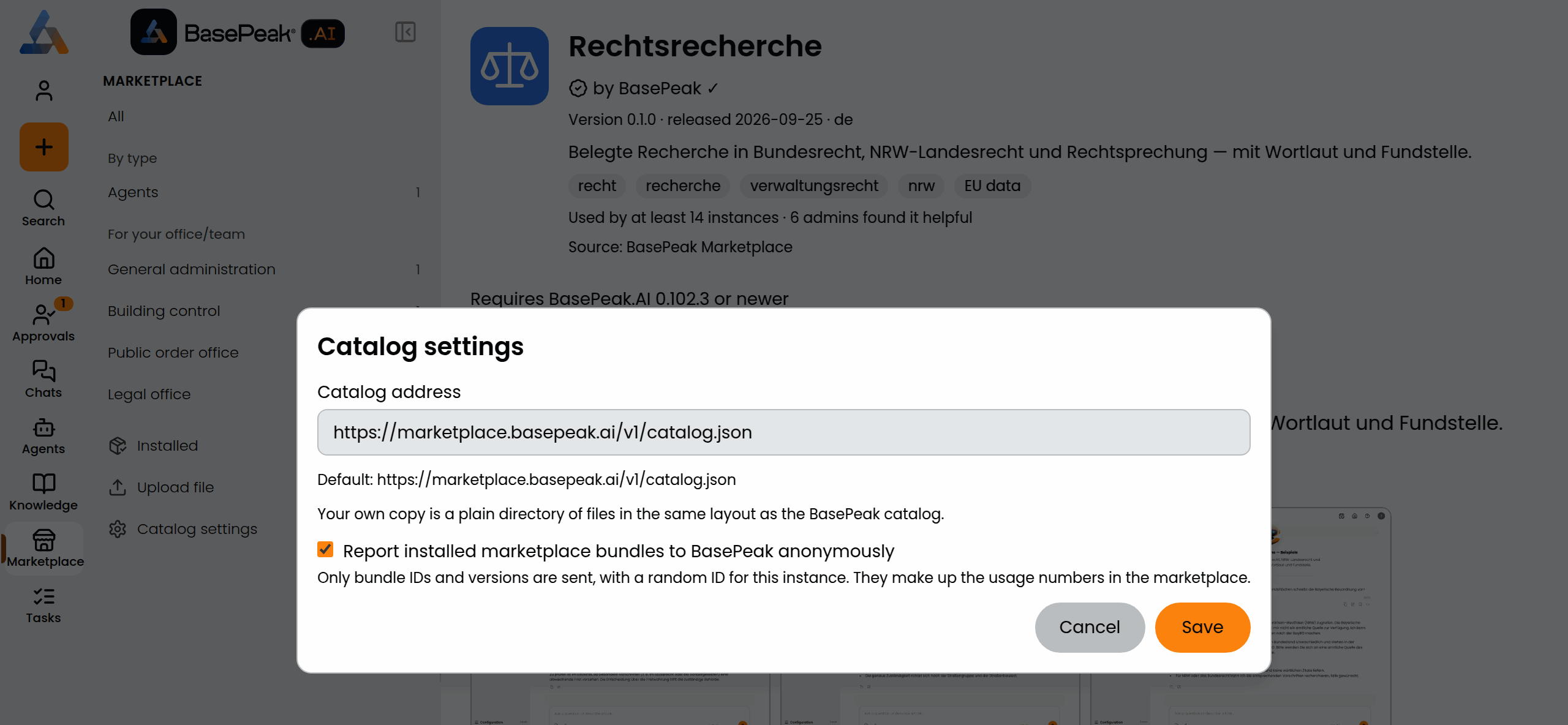
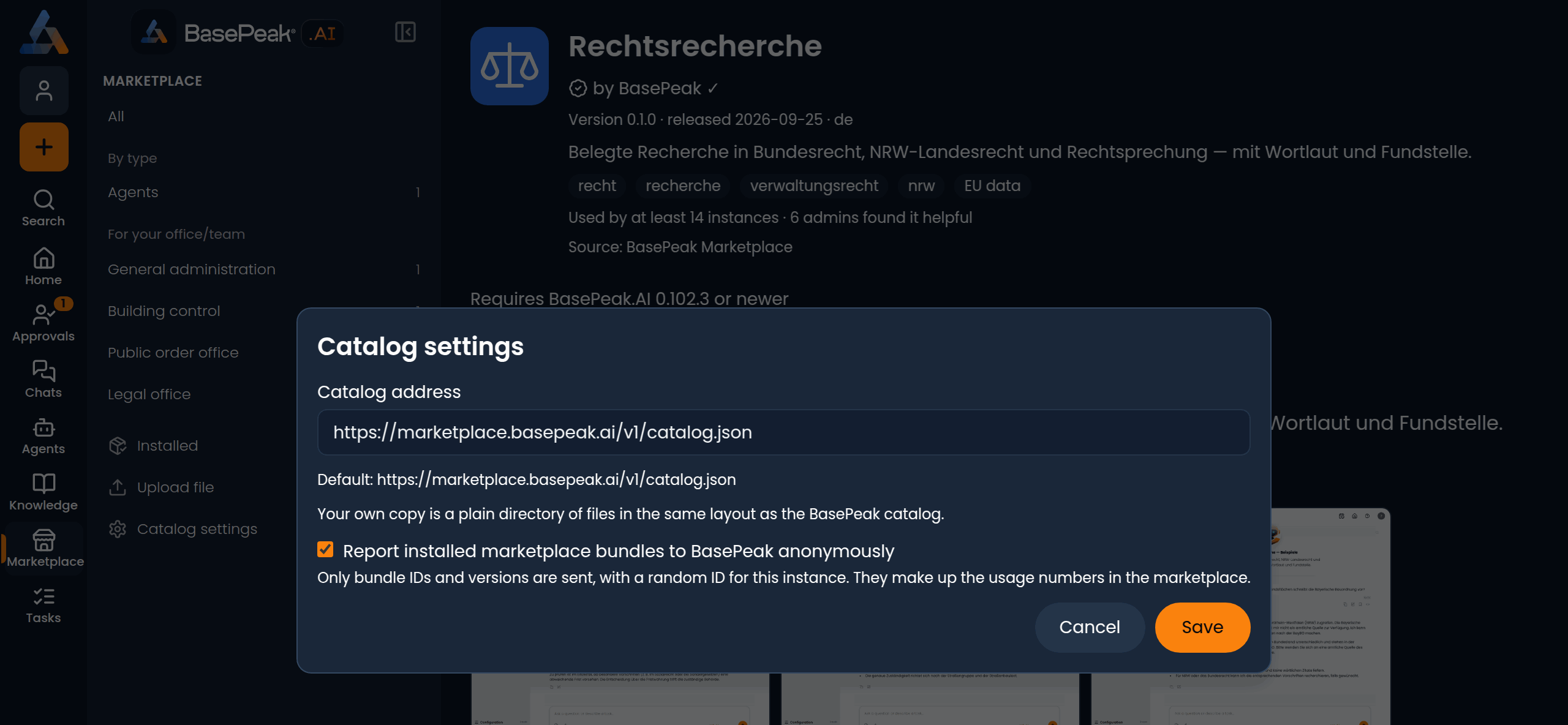
Marketplace → Catalog settings opens a dialog with two settings:
- Catalog address: the default is the BasePeak catalog. You can point it at your own copy, for example for a network without internet access. Your own copy is a plain directory of files in the same layout as the BasePeak catalog; every bundle in it is still checked against BasePeak's signature. Reset to default switches back to the BasePeak catalog.
- Report installed marketplace bundles to BasePeak anonymously (usage reports, on by default): only bundle IDs and versions are sent, with a random ID for your instance, never people or content. They make up the usage numbers. Clear the checkbox and your instance stops reporting; "helpful" votes are then not possible. An instance that reads its own copy never reports. If it says "Switched off for this instance by its operator.", reporting is switched off for good.
Click Save.
Other ways in
Installing from the BasePeak website
Every bundle also has a public page on basepeak.io. Its install button asks for your instance's address the first time and then opens the review in BasePeak.AI directly. Colleagues can send you that link, too. Someone without administrator rights who opens it sees "Only administrators can install bundles." and gets to the request form with Go to the bundle page.
Installing from a file
Marketplace → Upload file installs a bundle from a file (.yaml, .yml or
.json), optionally with its signature file (.sig). Review bundle opens
the same review as above. Without a valid BasePeak signature it says Not
signed by BasePeak; such bundles do not count as Marketplace installs.
When the Marketplace cannot be reached
If your instance cannot load the catalog, everyone sees "The marketplace can't be reached right now." Administrators can then Refresh now, enter a different address in Catalog settings or install a bundle from a file.