Getting Started
This guide walks you through signing in to BasePeak.AI and chatting with your first agent. The whole flow takes a few minutes.
1. Register on the SaaS Portal
Go to portal.basepeak.cloud and register with a passkey or password. The BasePeak SaaS Portal uses built-in authentication — there is no third-party sign-in (such as Google or Microsoft) at the portal level.
2. Book an instance
In the portal, book your BasePeak.AI instance. It is provisioned at your own subdomain — your-workspace.platform.basepeak.ai.
3. Open your instance
Open your instance at your-workspace.platform.basepeak.ai and sign in via "BasePeak SSO" using your SaaS Portal login. After signing in, you land on your Agents page (/agents), which lists all agents shared with you plus any you have created yourself.
If you have never signed in before, the list will be empty and prompts you to create your first agent.
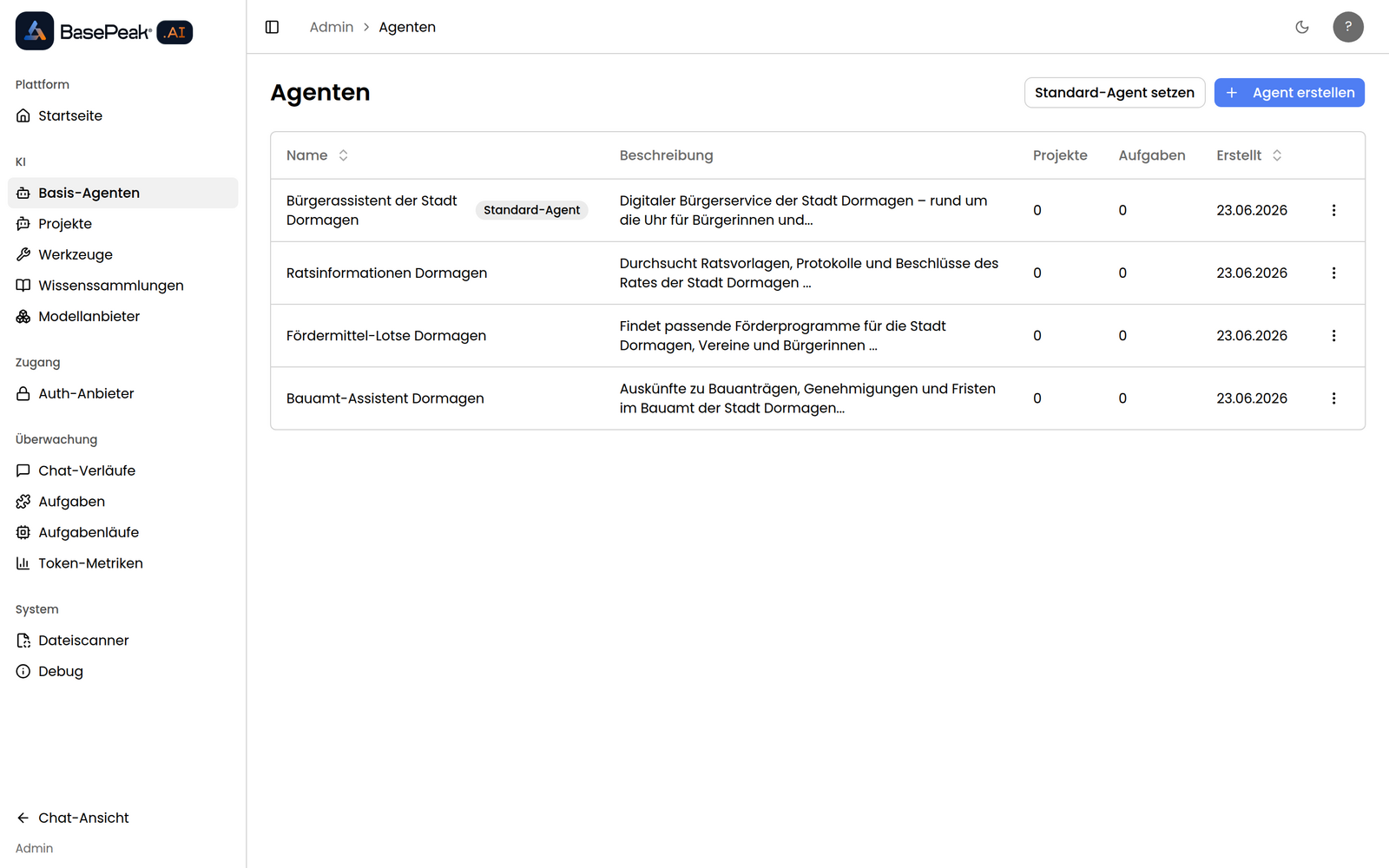
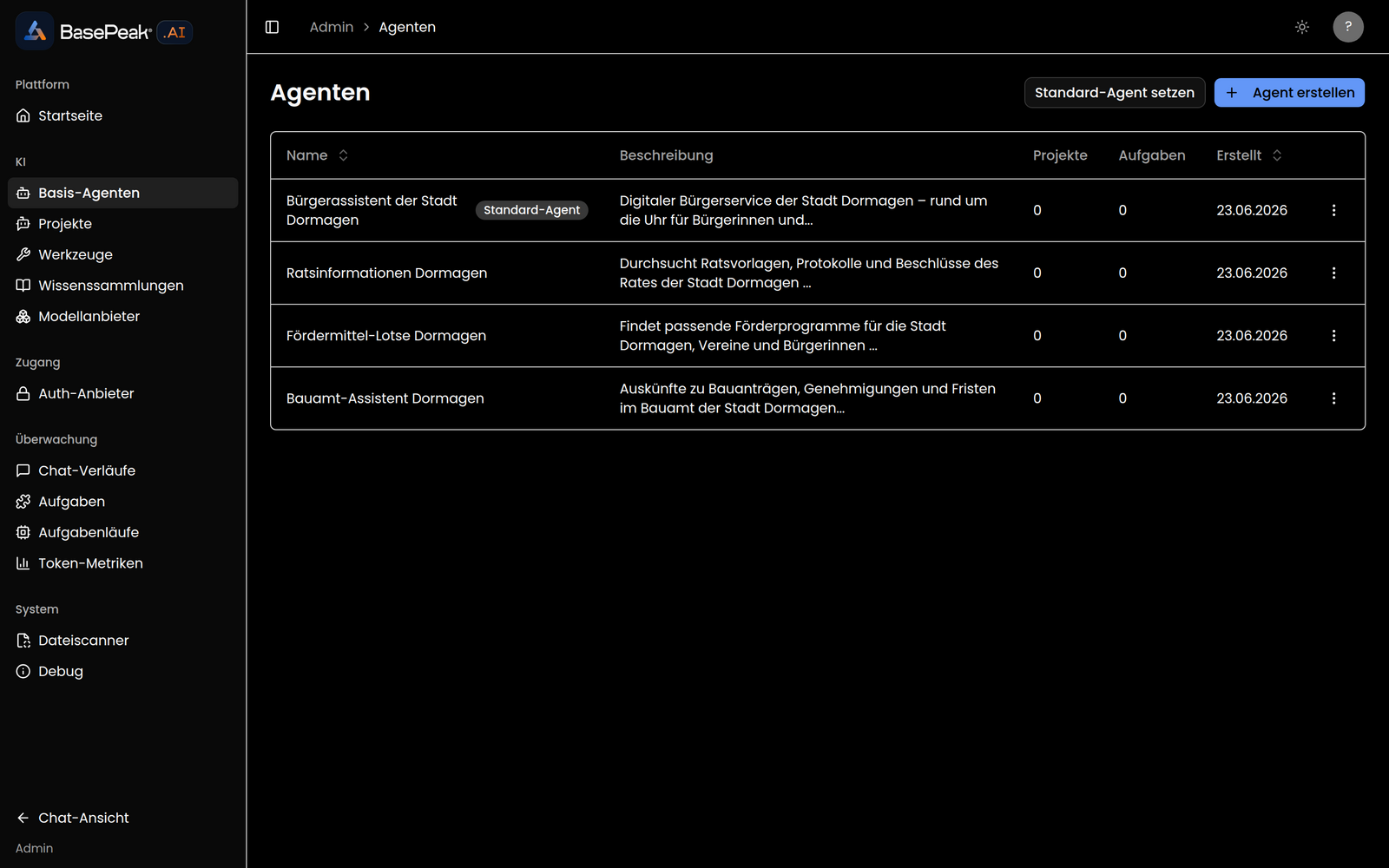
Inside your instance, as an administrator you can add your own authentication providers — such as OIDC, Nextcloud, EntraID, or Google — so your team can sign in.
4. Create your first agent
From the Agents page, select an agent to open it, or create a new one. Creating an agent opens the agent editor, where you can:
- Give the agent a name and optional description.
- Select tools from the catalog (web search, file access, APIs, and more).
- Attach a knowledge set if you want the agent to answer questions from your documents.
- Adjust the system prompt to give the agent a specific persona or focus.
Once you are happy with the configuration, save the agent. You can return to edit it at any time.
5. Chat with your agent
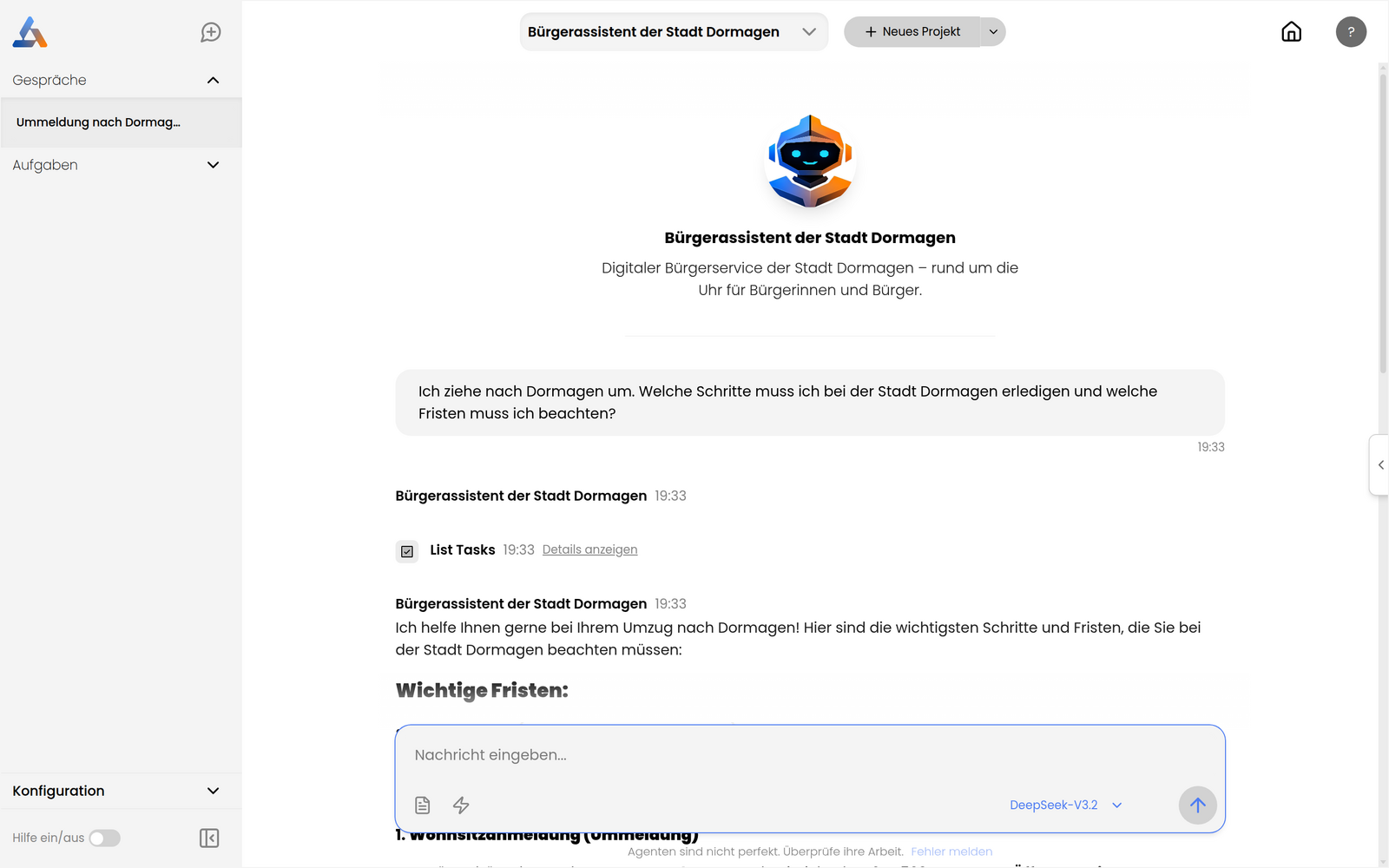
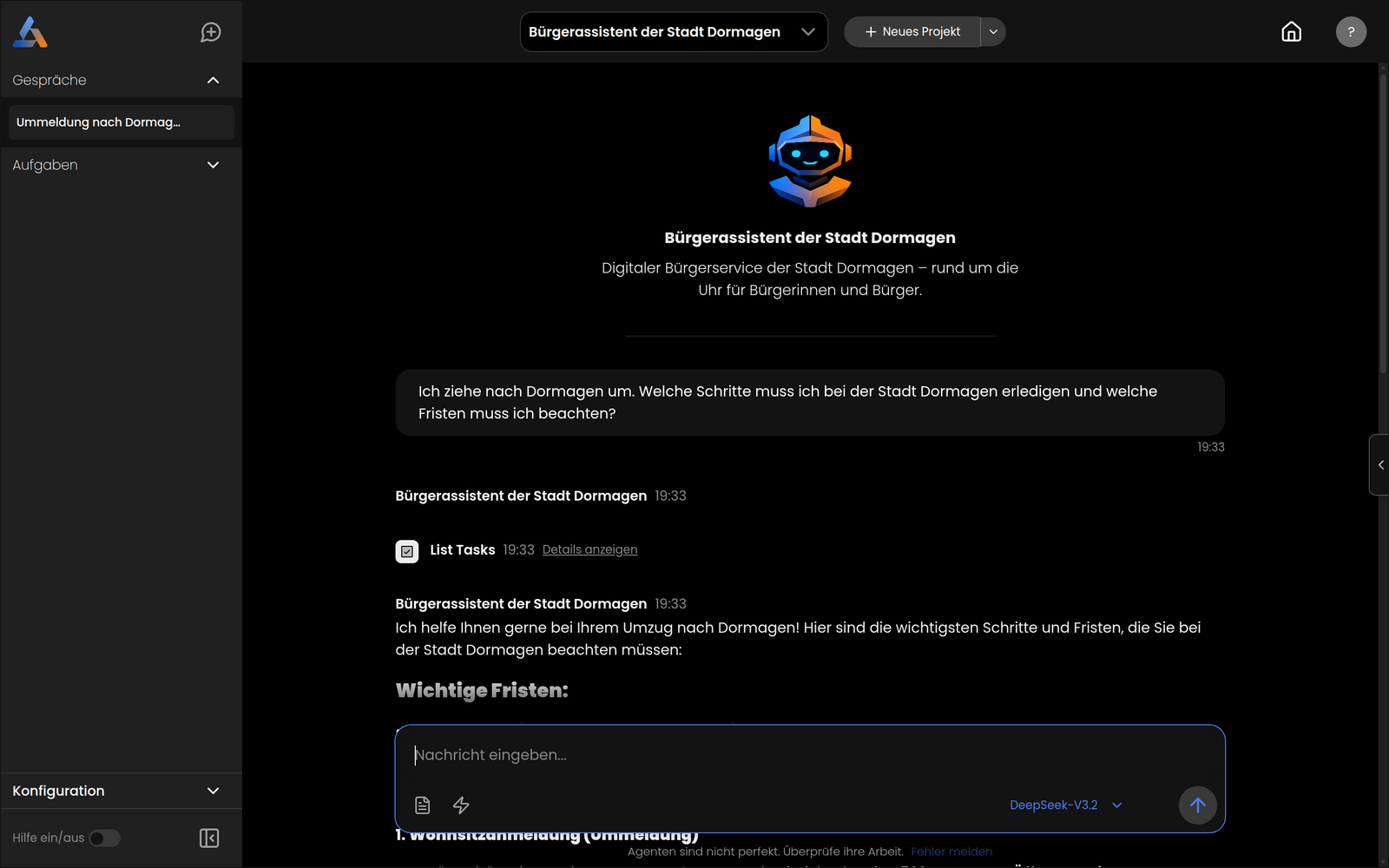
After saving, the editor transitions to the chat view for that agent. Type a message in the input field and press Enter. The agent responds, calling tools as needed and displaying results inline.
Each exchange is saved as a thread. You can start a new thread at any time, and all your past threads are available in the sidebar.
Next steps
- Explore the Concepts section to understand how agents, threads, tasks, and knowledge sets relate to each other.
- Check Configuration to learn how agents and tools can be customized further.