Apps
An app is an interface built inside a project, published to a catalogue, and opened there as a named, resumable instance. What someone enters is kept, and it streams live: the same app open on a laptop and a phone stays in step.
The difference from a chat is that an app outlives the conversation. It has its own state, its own address, and its own lifetime.
Getting there, and building your first one
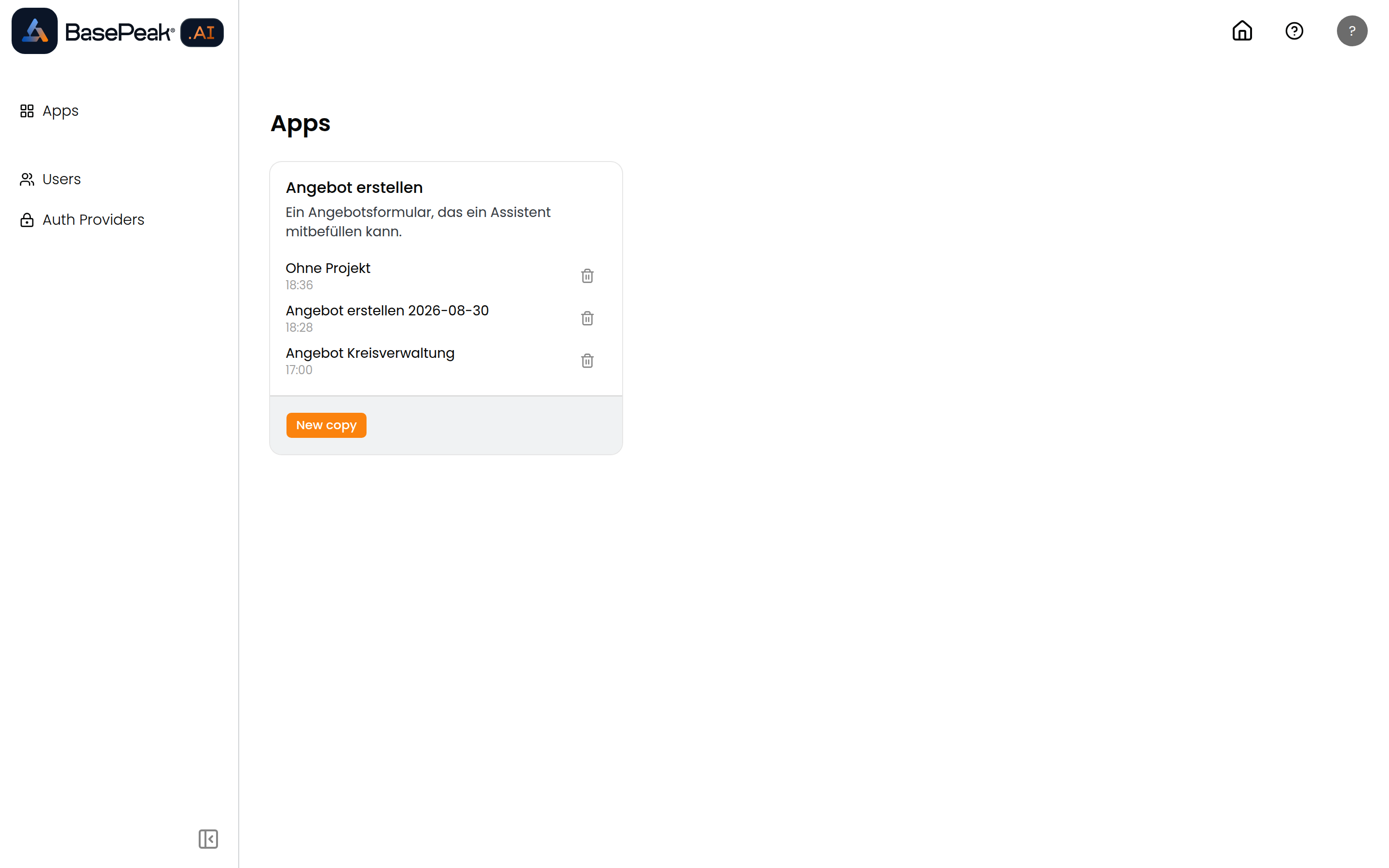
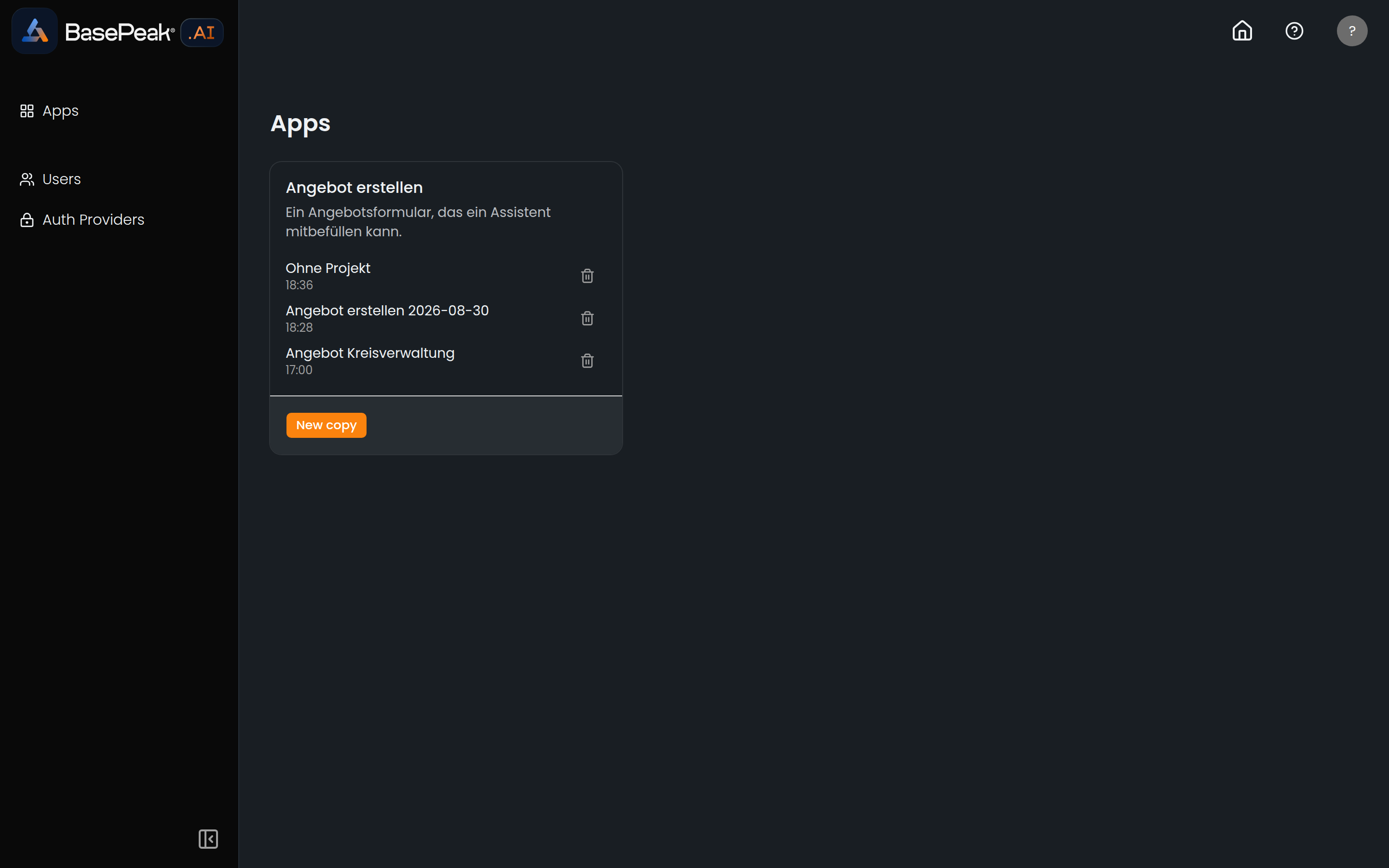
Where it lives: open Apps in the left sidebar. If it is not there, the feature is not enabled for your workspace yet — see Enabling it.
The page lists the available apps, your own saved instances, and — under My drafts — the apps you are currently building. New app first asks which project the draft should belong to, then opens the app builder on an empty document. You need neither an API key nor a line of JSON for any of it.
The builder, in five columns
| Column | What it is for |
|---|---|
| Components | The palette. One click drops the component into whatever is selected. |
| Structure | The document tree: select, drag to reorder, Delete. |
| Preview | The app as it will look — Select while building, Interact to try it. |
| Inspector | Everything about the selected element: Props, Data, Agent, Action. |
| Ask the assistant | An assistant that edits the same document you do. |
Saving is continuous — "Saving…" appears briefly in the header, and there is no save button. Undo and Redo sit on the left of the toolbar and name in their tooltip what they would take back ("Added Card", "Moved element").
The first five minutes
- New app → pick a project → Create. The builder opens on an empty card as the root.
- Select the root in the tree, then click
Cardin Components — and inside that card,InputandText. - Select the
Input, and in the Inspector under Props click Bind to state next tovalue, enter/nameas the pointer, and choose Apply. Do the same for theTextelement'stextprop. - Switch to Interact at the top and type in the field: the text below it follows immediately. Both elements hang off the same place in the state.
- Publish → choose Everyone on this instance in the dialog → Publish. The app appears under Apps; New copy starts it as an instance. Whatever is entered there is still present the next time you open it.
To make a button do something, give it one of the project's tools in the Inspector's Action tab — see A button can do something right away.
Test and Publish are two different buttons
- Test publishes the current state privately: the version never appears in the catalogue, but a real instance is created and opened right away. A half-finished draft does not become visible to anyone else. Test asks nothing — it always publishes privately.
- Publish asks first who is allowed to see the version (see below), and only then publishes it.
Who can see a published app
Publish opens a dialog with two choices. The default is always Only me — including when you chose something else last time.
-
Only me. The version stays out of the app catalogue. Only you can open it. This is the same visibility Test uses.
-
Everyone on this instance. The version goes into the app catalogue — and the catalogue is the whole instance: every authenticated user of this BasePeak.AI instance can find the app there and run it, not just the members of your project. There is no finer grant (per person or per group) yet.
The only way back is for an administrator to archive the app — and archiving cannot be undone: once an app is archived, no further version of it can be published, not even by you. So choose this only once the app really is meant for everyone.
After publishing, the builder says which of the two happened: "Published — visible in the app catalog." or "Published privately — not listed in the app catalog."
You can publish again at any time and make a different choice; each publish is its own version.
The distinction matters more than it sounds: actions do not run in the preview. There is no instance behind a design-time preview for a tool call to run against, and the builder says so: "Actions run only in a published app — try 'Test' to run it for real." Test is the short way there.
If validation finds something while you edit that publishing would not survive — an element unreachable from the root, a prop of the wrong shape — it is listed under the toolbar and both buttons are disabled until it is resolved.
The assistant builds alongside you, in the same document
Ask the assistant sits on the far right. What you describe there is applied as a change to the same document the palette, tree, and inspector edit — there is no second copy that could drift apart. The changes appear while the answer is still streaming.
Two properties matter here:
- One turn by the assistant is exactly one step. If a single request makes it insert three elements, one click on Undo takes all three back together, not one of them.
- It is one shared stack. Your own gestures and the assistant's turns sit on it in the order they happened; the Undo tooltip carries the assistant's own summary for one of its turns. An ordinary edit after an undo clears the redo stack, as anywhere else.
If an answer is cut off, whatever was already applied is kept — the builder says so and leaves it to you to undo it or ask again.
This assistant is not your project's assistant but a built-in builder assistant. It edits drafts, and it cannot reach the state of a running instance.
When a tool is missing
The tool picker under Action lists this project's tools. If the document names a tool that is not among them, the inspector warns:
Bound tool "…" is not available in this project — whoever runs this app may pick a project that has it.
The binding is kept rather than silently dropped.
It means the tool is not part of this project's tool surface at all. It does not mean a tool is currently switched off. A tool set to "off" in the project's Tools configuration, but still offered by the agent, is executed by an action anyway — which is precisely why it does not warn. The project toggle governs what the assistant reaches for on its own in conversation; whether an action may run is decided by the agent's tool surface.
The life of an app
| Step | What it produces | Who does it |
|---|---|---|
| Draft | A document inside the project | Whoever builds the app |
| Publish | An immutable version in the catalogue | Whoever builds the app |
| Instance | A running copy with its own state | Whoever uses the app |
A published version is immutable. Instances stay pinned to the version they were created at. Republishing therefore disturbs nobody who is mid-entry — running instances carry on, undisturbed, on their own version.
The same holds in the other direction, and that is the more important one: adding more assistant access to a draft and republishing grants no already-running instance any new ability. Its tools are derived on every turn from the version it is pinned to. Anyone running an app in front of real users can rely on that.
Reach the catalogue via Apps in the sidebar. It shows both the available apps and your own saved instances, ready to resume.
An assistant can work alongside you
This is the second, different chat: not the builder assistant working on a draft, but an assistant inside the running app, working with its data.
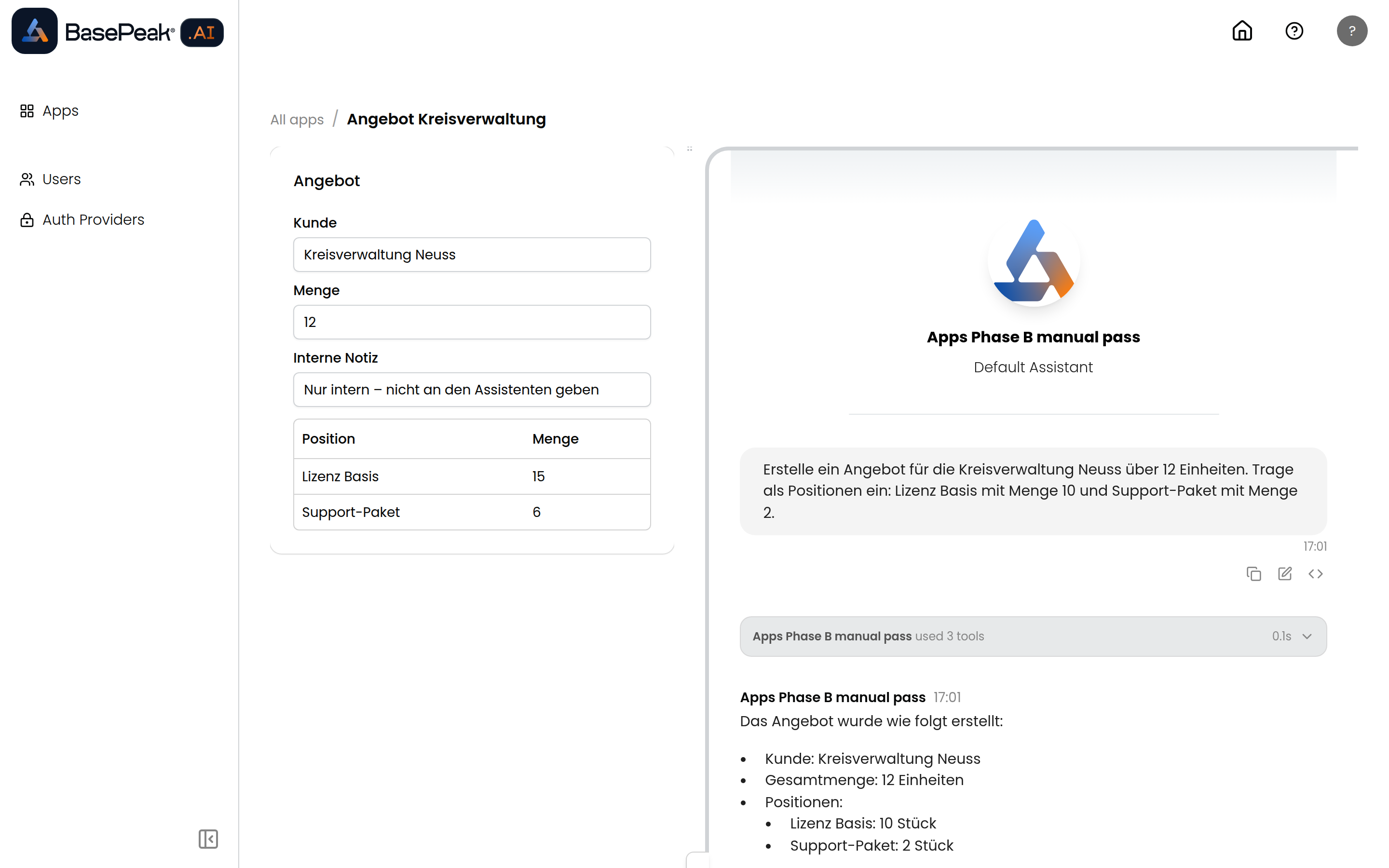
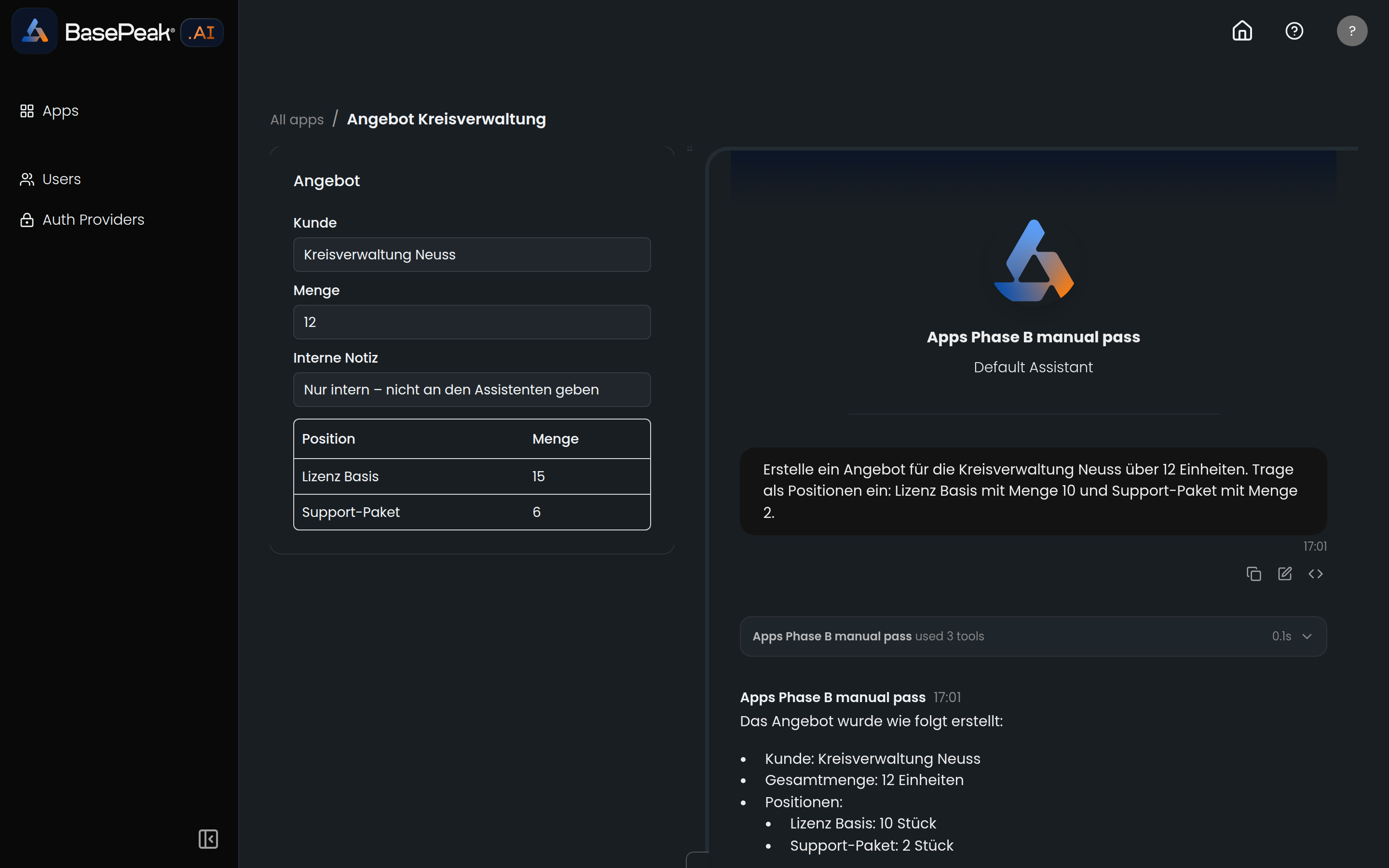
A chat panel pulls out from the right of an open app, via the tab on its edge. It shares the surface with the app rather than covering it, and the divider can be dragged — so the document stays in view while the assistant works on it. On a phone the panel takes the full width.
Picking one of your projects there and sending a message gives that project's assistant tools for exactly the parts of the app its author chose to expose — no more and no less.
In the screenshot above the whole form came from one sentence of prose: the assistant set the customer, the quantity, and both table rows.
Access is granted element by element
Access is decided while the app is being built, on each individual element — in the Inspector's Agent tab:
- Readable by the assistant — the assistant may see the value.
- Writable by the assistant — the assistant gets a tool to change the value.
- unmarked — the element does not exist as far as the assistant is concerned.
An unmarked element is invisible — there is no tool through which an assistant could even try, and the endpoint that accepts writes refuses any path it would not have generated a tool for.
In the screenshot above, Interne Notiz ("internal note") holds text a person can read. Asked what it says, the assistant replies that it cannot find such a field. That is the intent: the person sees everything, the assistant sees only what was marked.
What the boundary rests on
Three properties carry that promise:
- The generated tools are the enforcement. There is no second list that could fall out of maintenance. What is offered and what is accepted are derived from the same document, so they cannot drift apart.
- Derivation happens fresh on every turn, from the version the instance is pinned to. Republishing with wider access therefore does not widen a running instance.
- Absence is denial. No marking, no access.
What the assistant is told
When a write is refused, the answer names the path involved. That is not a detail for developers: it is the only thing that lets the model correct itself and try something else, rather than repeating the same refused call.
A value that does not match a declared shape is likewise refused — text in a field declared as an integer, for instance.
An annotated element
The Inspector writes what you enter into the document. Here is what access looks like there — the Purpose and Data shape fields, and the two checkboxes under Agent:
"customerField": {
  "type": "Input",
  "props": { "label": "Kunde", "value": { "$bindState": "/customer" } },
  "annotation": { "purpose": "The customer this quote is for." },
  "agent": { "readable": true, "writable": true }
}
annotation.purposebecomes the generated tool's description. It is how the model knows what a field is for — a clear sentence pays off here. Describe what the element does: a purpose phrased as a restriction ("must not …") is copied verbatim into the tool description and can make the assistant refuse to try at all. The Inspector points this out.annotation.dataShape(optional) constrains what may be written, and is checked on every write.agentgrants the access.
An element with no agent block at all — like Interne Notiz in the example —
stays hidden from the assistant.
A button can do something right away
Some elements are not just bound to a value — they are bound to an action: a click fires it immediately, with no need for the AI to think it through first. A button might look something up, send a message, or call another service, and the result shows up in the document right away.
Whoever builds the app decides in the Inspector's Action tab what such a button does: which tool, with which params, and where in the state the result or an error is written (Result pointer and Error pointer). On click, the app collects the current input, runs the action in the background, and writes the result there. For anything sensitive, a confirmation prompt can be added too, which has to be answered before anything runs.
When a button like this sits inside a list, it can act on exactly the row it is in: "Look up this order" affects only the row that was clicked, not the whole list.
The assistant can press the same buttons
A button its author has explicitly exposed to the assistant (Callable by the assistant) can also be pressed from the chat panel — with the same result a human click would produce, and for a row in a list, the assistant says which row it meant. A confirmation prompt on the button only guards the human click: the assistant pressing the same button does not see it and runs the action right away.
If a button is not exposed to the assistant, or the service behind it is not available to this project, the assistant is told so and does not simply retry the same call — the same behaviour as a refused write, above.
Lists and repeats
A container can repeat over a list in the state: in the Inspector's Data tab,
turn on Repeats over a list, enter the pointer to the list under Repeat over
(say /orders), and the field that makes a row unique under Row key (say id).
Elements inside that repeat do not bind to the state as a whole but to a field of
their own row: the Inspector relabels the pointer field to Row-relative pointer,
and what goes there is name, not /orders/0/name. Every row gets its own copy of the
same element — an input in row 1 writes into row 1, one in row 2 into row 2.
Limits of this stage
These are deliberate, and a later stage lifts them:
- Elements inside a repeat are out of reach for an assistant, even when marked. They work for people; what the assistant lacks is row-level addressing, and when in doubt nothing is exposed at all.
- Tables and lists are always written whole. Ask the assistant to add a line item and you get the complete new list back — there is no narrower operation.
- A row can be acted on, not changed. An action can target one row of a list — read it, call a service with its values — but changing a single value in that row still takes a full list replacement, as described above.
- Actions run quickly. One that takes longer than about a minute is cancelled; there is no model yet for anything longer-running.
- The chat panel requires that you own the chosen project. A project you merely belong to is not yet offered there.
Creating apps from a program
The builder is the usual way. If you want to create or maintain drafts from another system — from a template, a script, or a migration — the same draft can be edited through the API. It is one document; the two paths can alternate freely.
You need an API key carrying the project:widgets (read) and project:widgets-write
(write) scopes. Addressing is by project ID:
| Route | Scope |
|---|---|
GET /api/projects/{project}/widgets | project:widgets |
POST /api/projects/{project}/widgets | project:widgets-write |
GET /api/projects/{project}/widgets/{id} | project:widgets |
PUT /api/projects/{project}/widgets/{id} | project:widgets-write |
PATCH /api/projects/{project}/widgets/{id}/document | project:widgets-write |
POST /api/projects/{project}/widgets/{id}/undo or /redo | project:widgets-write |
DELETE /api/projects/{project}/widgets/{id} | project:widgets-write |
Undo and redo belong to the write scope: a key that may already replace a whole document gains nothing by changing it piecewise instead, or by taking back its own mistake.
The smallest document that works:
{
  "version": 1,
  "root": "card",
  "elements": {
    "card":  { "type": "Card",  "props": { "title": "First app" }, "children": ["name", "shown"] },
    "name":  { "type": "Input", "props": { "label": "Your name", "value": { "$bindState": "/name" } } },
    "shown": { "type": "Text",  "props": { "text": { "$bindState": "/name" } } }
  },
  "state": { "name": "" }
}
# create the draft (wrap the document above as {"name": …, "document": …})
curl -X POST "$BASE/api/projects/$PROJECT/widgets" \
  -H "Authorization: Bearer $KEY" -H 'Content-Type: application/json' \
  -d '{"name":"First app","document":{ … }}'
The draft then appears under Apps → My drafts and can be carried on with in the builder.
Publishing is not part of this surface. Neither …/publish, nor the catalogue, nor
instances are open to keys — an app is published by a person, in the builder. Nor does a
key reach the event stream at …/widgets/{id}/events: a permanently open connection held
by a long-lived credential is a different thing from a single call. A key that wants the
current state fetches it with GET.
Full field-by-field documentation lives in the developer guide, docs/widget-apps.md,
in the source repository.
Administration for the whole workspace
In the admin area under Apps, every app published on this instance is listed, one row
per version — including private ones and versions whose publisher has left. The page
requires the app:manage permission; without it, it cannot be reached. It sits beside the
existing administrator role rather than replacing it.
Two interventions are available there, both acting on the whole app rather than only the row that was clicked:
- Archive — no new instances are created any more, for every version of this app. Instances already running stay. This cannot be undone, and it holds against the publisher too: a later publish of the same app is refused, so nobody can put the app back into the catalogue by republishing it.
- Delete — removes every version of this app and all its running instances. Also final.
Both ask first, and say exactly what will happen.
Enabling it
Apps are off by default and must be enabled for the workspace (feature key apps).
Until that happens, /apps is unreachable and every related endpoint answers "not
enabled".
One more thing worth knowing: switching the panel to a different project starts a fresh conversation. The previous one is not discarded — it stays where it was, under the project it belonged to.